
Report an Incident or Hazard
Use Report an Incident or Hazard in the Staff Portal to let your RTO know about something unsafe as soon as you can. You only need to say what you saw. Your compliance team will assess it and follow it up.
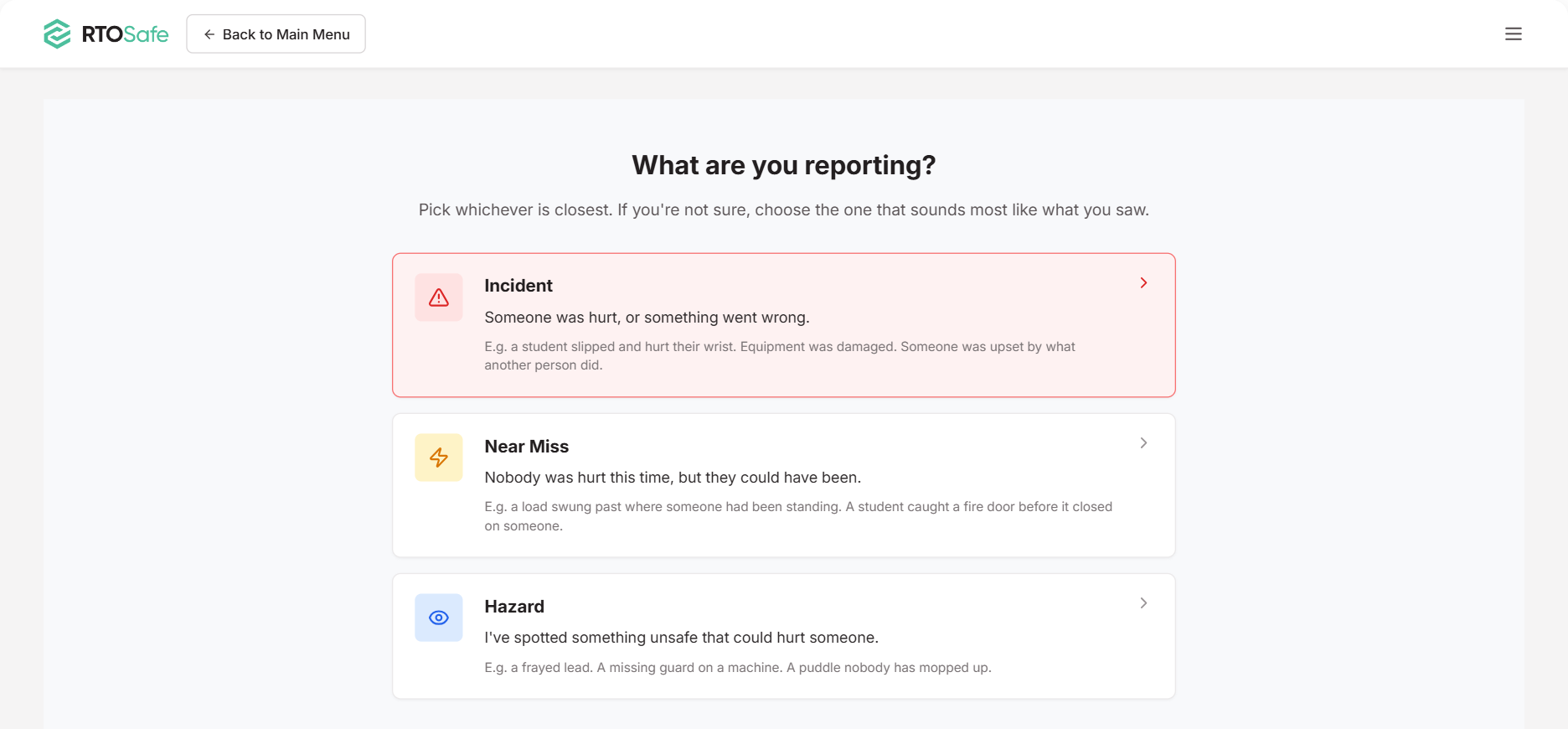
Select Report an Incident or Hazard on your portal home page, then choose what you’re reporting:
- Incident: someone was hurt, or something went wrong
- Near Miss: nobody was hurt this time, but they could have been
- Hazard: you’ve spotted something unsafe that could hurt someone
Not sure which to pick? Choose the one that sounds most like what you saw. Your compliance team can sort it out.
Fill In the Report
Describe what happened or what you saw, when it was, and where. Be specific about the location, such as “Workshop 2, behind lathe 3”, so someone can find it.
If you can, also:
- Say who was involved
- Say what you did about it, such as mopping up a spill
- Attach a photo straight from your phone
- Tick the box if a person under 18 was involved, or if under-18s use the area where the hazard is
After You Submit
You’ll see a reference number, such as INC-12 or HAZ-4. Write it down if you might need to talk about the report later. You can’t look up your reports in the Staff Portal after you submit them.
Your compliance team is told straight away.
Reporting in RTOSafe doesn’t replace calling for help. If someone is hurt or in danger, follow your RTO’s emergency procedures first, then report it.
Can’t Find the Option?
Your RTO may not have turned this feature on. Check with your admin.