
Manage Continuous Improvement Initiatives
Your continuous improvement register is where you record what needs to change, the work you do about it and what it achieved. Each initiative keeps the source, the actions and the evidence together, so you can trace an improvement from the issue that raised it to the result.
Related to Standards for RTOs 2025, Standard 4.4: the RTO undertakes systematic monitoring and evaluation to support quality delivery and the continuous improvement of services, and demonstrates how outcomes from that monitoring and evaluation are used to inform continuous improvement.
When to Use This
Create a continuous improvement initiative when you:
- Identify something that could work better
- Receive feedback from students, staff, or industry
- Complete an internal audit and find areas to address
- Respond to a complaint, appeal, incident or risk
- Act on a Policy Analysis finding
- Review validation outcomes
You can also raise an initiative straight from a complaint, feedback, an incident or a meeting. The initiative then lists that record as its source.
Creating an Initiative
Start a new initiative
Go to Continuous Improvement and select New initiative.
Describe the improvement
Describe the opportunity, the actions you’ll take and who’s responsible. Add a due date and where the idea came from, such as an internal audit or student feedback, so you can show what led to the change.
Doing the Work
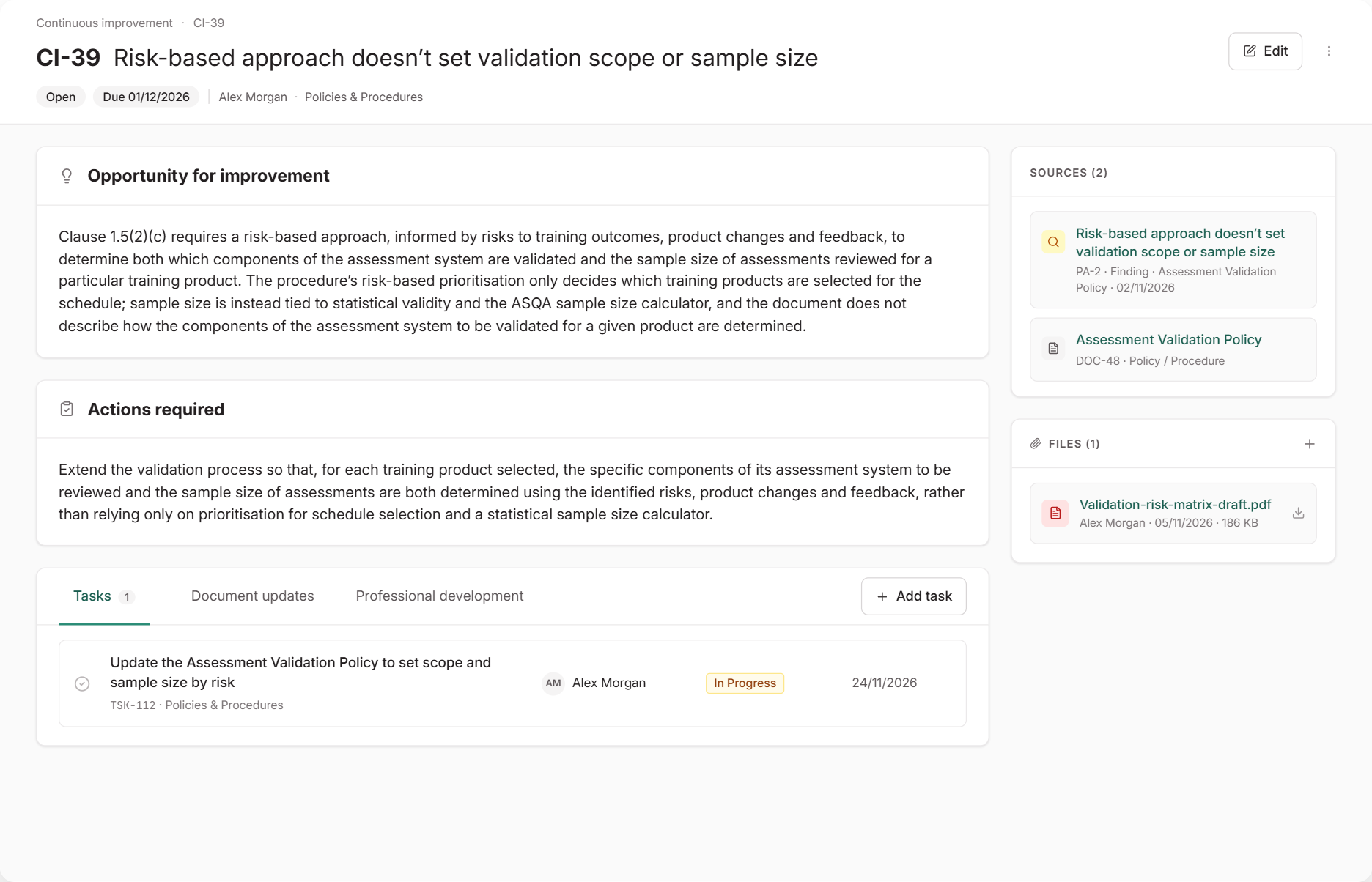
Everything about the improvement stays on the initiative, so you won’t need to piece the story together before an audit:
- Tasks: break the work into steps with their own owner and due date. Select Add task to create a new task or link one that already exists. See Tasks.
- Document updates: shows the policies and procedures you changed because of this improvement. To add one, open the policy’s Versions tab and select Link a CI from the version’s menu.
- Professional development: if staff need training to make the change, select Add PD activity. It goes onto their PD plans.
- Files: upload supporting evidence, such as meeting minutes, revised procedures or training records.
- Sources: shows the records that raised the initiative, such as a complaint, feedback, a risk, a validation or a Policy Analysis finding, so you can trace each improvement back to its cause.
Completing an Initiative
When the work is done, select Edit, set Status to Completed and describe what was achieved in the Outcome Summary. The outcome then appears at the top of the initiative, so anyone reviewing it can see the result first. If you stop an initiative without completing it, set it to Closed instead.
History and Archiving
Open the ⋮ menu on an initiative to:
- View its History: who changed it and when
- Archive it: it leaves the main list but stays available for the record