
Make a Policy Public
When to Use This
Making a policy public in RTOSafe gives you a shareable link that always shows the latest published version of that policy. Anyone with the link can view it without logging in. A draft stays hidden.
Before You Start
- Your Public Portal must be switched on
- The policy must already be uploaded (see Upload Policies and Procedures)
Steps
1
Open the policy
Go to Policies and select the policy you want to make public.
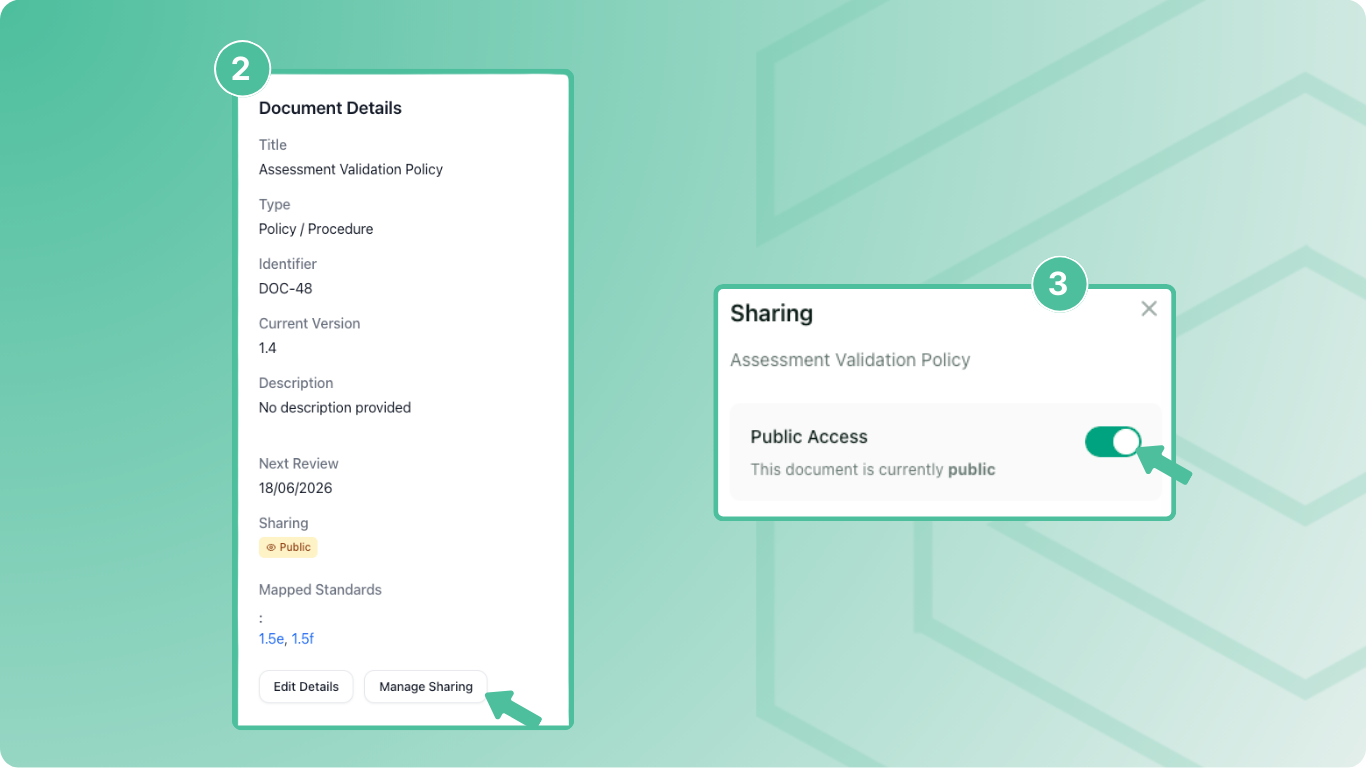
2
Turn on public access
Select Manage Sharing and turn on Public Access.
3
Copy and share the link
Copy the public URL and add it to your website, enrolment forms, or wherever you need it.
What Happens Next
- Anyone with the link can view the policy without logging in
- When you publish a new version, the link shows that version
Common Issues
Why is the Manage Sharing button greyed out?
Switch on your Public Portal first.
Why can't I make a policy private?
It’s selected as your complaints or appeals policy. Choose a different one first in Settings → Complaints or Settings → Appeals.
Why does my public link show an old version?
The link shows the published version. If you’ve started a new version, publish it and the link will update.