
Set Document Requirements for Positions
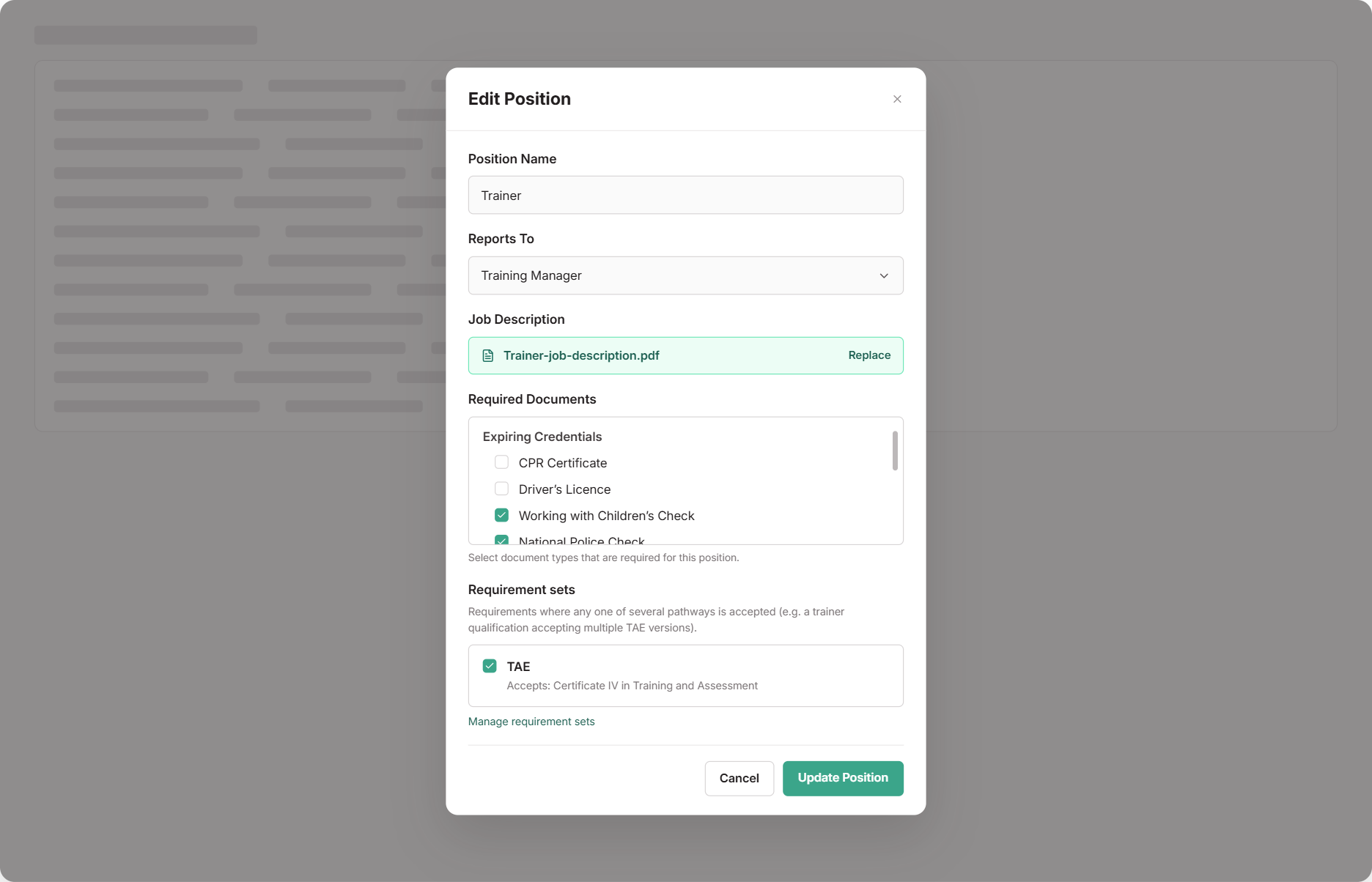
Positions can require staff to hold certain documents, so gaps in credentials show up before an audit does. There are two kinds of requirement, and choosing the right one is what makes a staff member’s upload count.
Which One Should I Use?
| Required document | Requirement set | |
|---|---|---|
| Use it for | A certificate, licence or check — Working with Children Check, NDIS Worker Screening Check, police check, driver’s licence, resume | Qualifications, skill sets, accredited courses and units from training.gov.au — like TAE40122, or units such as TAELLN411 |
| Staff upload it as | A certification, licence, or check, choosing that type | A training product |
| What clears it | A verified upload under that exact document type | A verified upload of that exact training product — or, for a unit, a qualification with that unit ticked |
Rule of thumb: if you’d find it on training.gov.au, use a requirement set. If it’s a licence, check or certificate, use a required document. For something that’s on training.gov.au and also expires, like First Aid, use a requirement set that accepts either — see the First Aid example.
A training product never clears a required document, even when the names match. Use a requirement set for qualifications and units.
Setting Up a Required Document
Check the document type exists in Settings → Staff Document Types — see Set Up Document Types
Go to Settings → Positions and edit the position
Under Required Documents, tick the type, then select Update Position
Setting Up a Requirement Set
Create the set in Settings → Requirement sets and add the training products — see Set Up Requirement Sets
Go to Settings → Positions and edit the position
Under Requirement sets, tick the set, then select Update Position
Need either kind for just one staff member? Use Actions → Manage Requirements on their Documents tab instead.
Clearing a Document Requirement
The easiest way is the Upload button next to the requirement, on the staff member’s Documents tab or in My Documents when the Staff Portal is enabled. It sets the upload up so it counts.
If they use Add Document instead, a training product clears requirement sets and a certification, licence or check clears required documents of the matching type. Either way, it clears once the document is verified. Anything outstanding also shows on the Staff Document Compliance report.
Common Issues
I uploaded a qualification but the requirement still shows as not met
The requirement is probably a document type. Create a requirement set with that qualification, tick it on the position, and untick the old document type. The qualification that’s already uploaded will then count once it’s verified — there’s no need to upload it again.
It still doesn't clear with a requirement set
Check the upload is the exact same training product as the set, including the version — TAE40116 won’t clear a set that asks for TAE40122. Check it’s verified, too. For a unit, open the qualification and make sure that unit is ticked under Manage units.
The staff member holds a superseded version
Requirement sets don’t match other versions automatically. If you accept the older version, add it to the set as another pathway with + Add alternative pathway (OR). Set an Accepted until date if you’re phasing it out.