
Decide an Appeal
Once an appeal is lodged, assign a reviewer to look into it and send the outcome before it’s due.
Standard 2.8 requires all parties to the appeal to be afforded procedural fairness, and appeal outcomes to be documented and communicated to the appellant. ASQA’s practice guide also expects the staff responsible for processing appeals to be objective and impartial.
Steps
Assign a reviewer
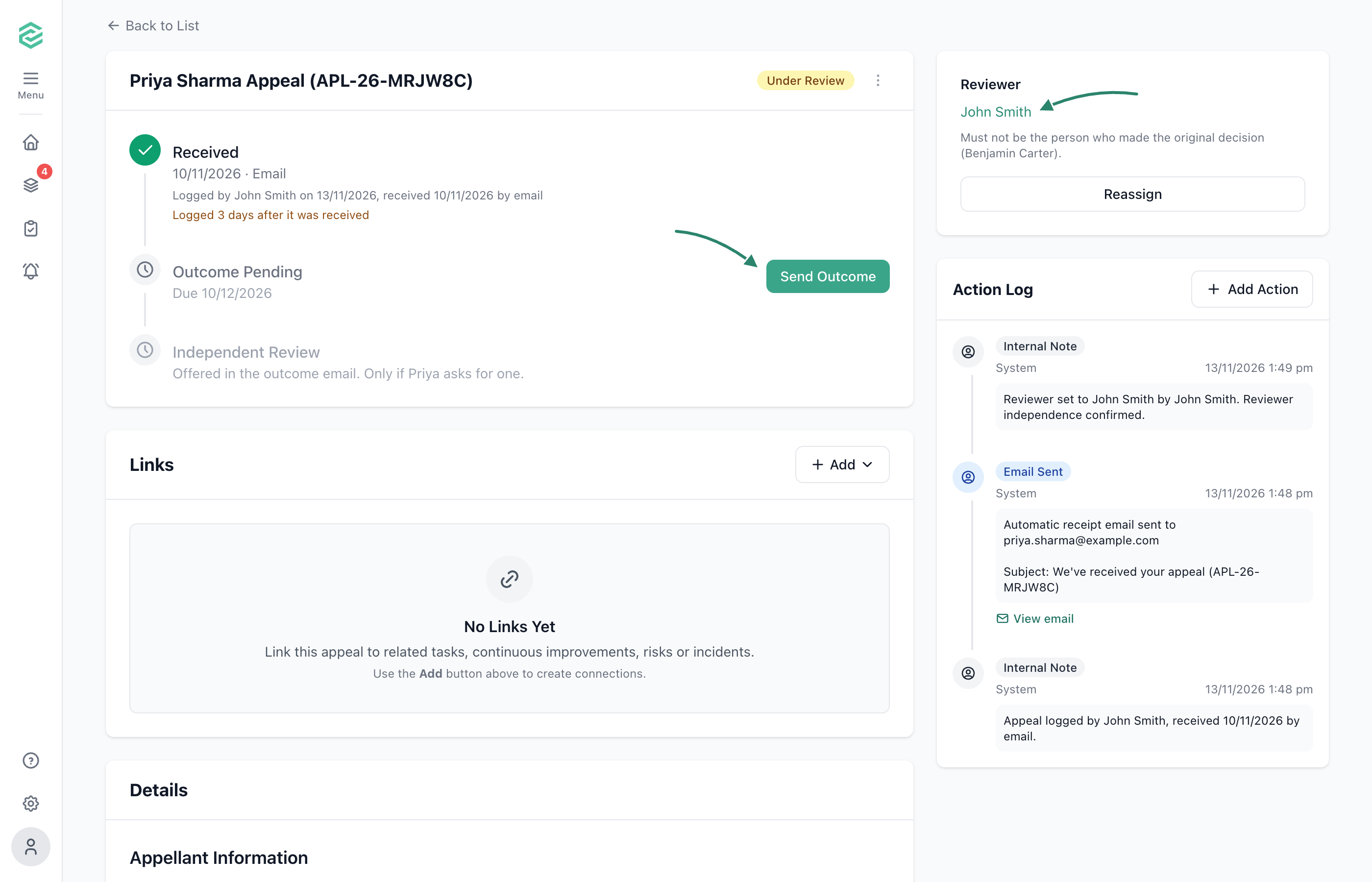
Open the appeal in Appeals and assign someone who wasn’t involved in the original decision, so the appeal is decided objectively and impartially.
Record what you do
Add notes as you look into the appeal, so its handling is documented. Link any follow-up tasks, improvements or risks, because Standard 2.8 requires appeal outcomes to inform continuous improvement.
Send the outcome
The reviewer selects Send Outcome, chooses the outcome and explains the reasons.
What Happens Next
- The appeal closes, and the appellant is emailed the outcome.
- The appellant can still ask for an independent review. See Manage an Independent Review.
- Use Export PDF for a complete record of the appeal.
Common Issues
Why can't I send the appeal outcome?
Only the assigned reviewer can send it. If they’re no longer available, reassign the appeal.
What if the appellant's email bounces?
RTOSafe shows a notice on the appeal. Check the address and resend, or record how you told the appellant another way.