
Manage Incidents and Near Misses
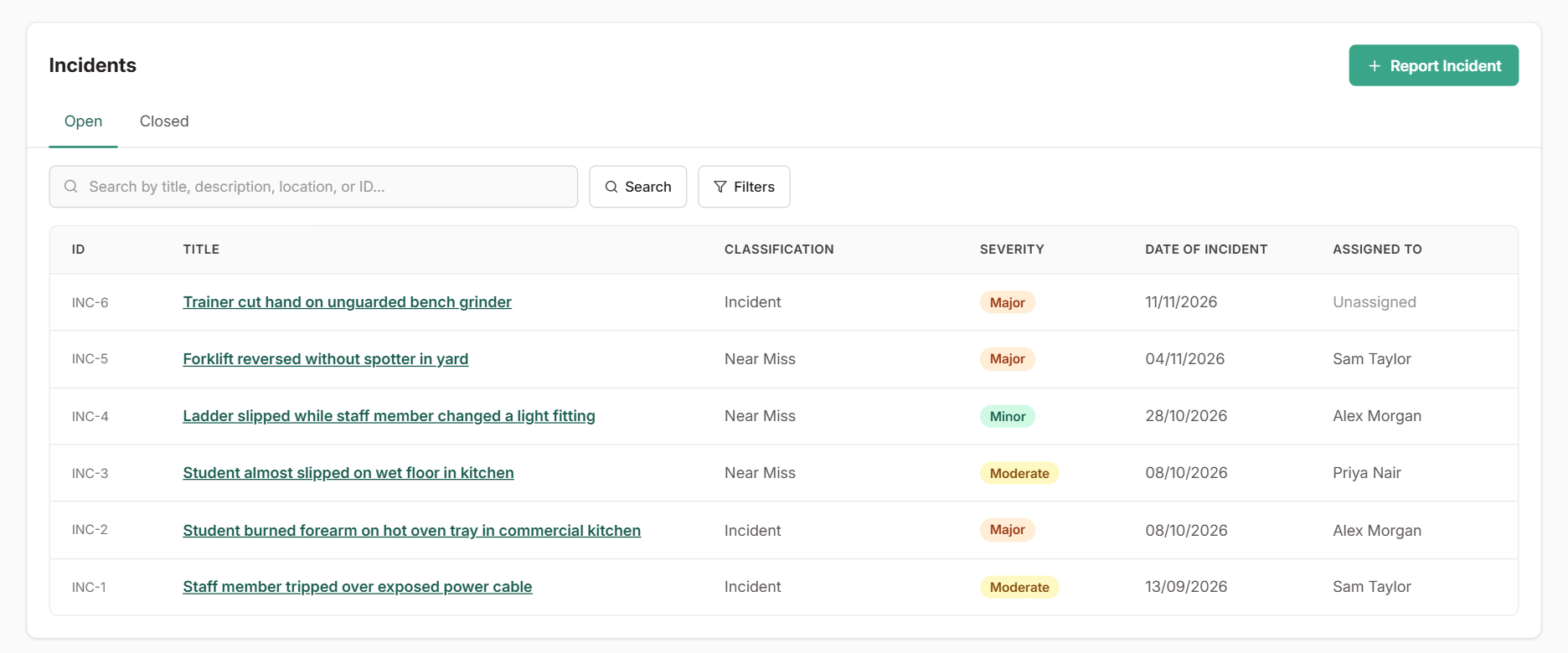
The Incidents register holds every incident and near miss in one place. You can see who is handling each one, what was found and what was done about it. Reports come from staff in the Staff Portal, or from admins who select Report Incident. You can also report one from a feedback, complaint or appeal record, and the two stay linked.
Steps
Assign an owner and begin the review
Open the incident and select Assign to choose who will look into it. Then select Begin Review to move it to Under Review.
Staff report what they saw without rating it, so setting the category and severity is part of your review.
Record the investigation
Select Update Investigation and record what you find as you go:
- The root cause
- The corrective actions
- Whether the incident is notifiable to a regulator
If someone under 18 was involved, record your child safety follow-up too. The Investigation Checklist shows what’s still missing.
Log what you do
Use Add Action to record these as they happen, with any files:
- Calls
- Emails
- Meetings
- Decisions
Follow up in the right place
For follow-up work, such as replacing equipment, updating a procedure or tracking an ongoing risk, create or link one of these in the Actions section:
- A task
- A continuous improvement
- A risk
That work then has its own owner and due date, and links back to the incident.
Close the incident
When the investigation is complete, edit the incident and set Status to Closed. You’ll need to have decided whether it’s notifiable before you can close it.
What Happens Next
- The incident moves to the Closed tab. Use Reopen from the menu if it needs more work.
- Linked tasks, improvements and risks carry on independently.
- Incidents assigned to you appear in My work.