
Copied or Shared Activities
When several staff need the same goal, such as mandatory training, a policy briefing or a moderation workshop, you don’t have to add it plan by plan. There are two ways to do it:
| Copy | Share | |
|---|---|---|
| Best for | A one-off goal a few people need | Training everyone in a group must complete, tracked together |
| After it’s added | Each copy is separate, so changes to one don’t affect the others | Edits update every assigned plan |
| Tracking | In each staff member’s plan | On one page showing who’s complete and who’s overdue |
Either way, each staff member records their own activity against the goal, and it goes through the normal approval process.
Copying a Goal
Open the PD plan containing the goal
Select the menu (three dots) next to the goal and choose Copy to other staff
Tick the staff members who need it. You can select whole departments at once
Select Copy
If a staff member doesn’t have a plan for that year yet, one is created automatically. Staff who already have the goal aren’t shown, so nobody gets it twice.
Sharing an Activity
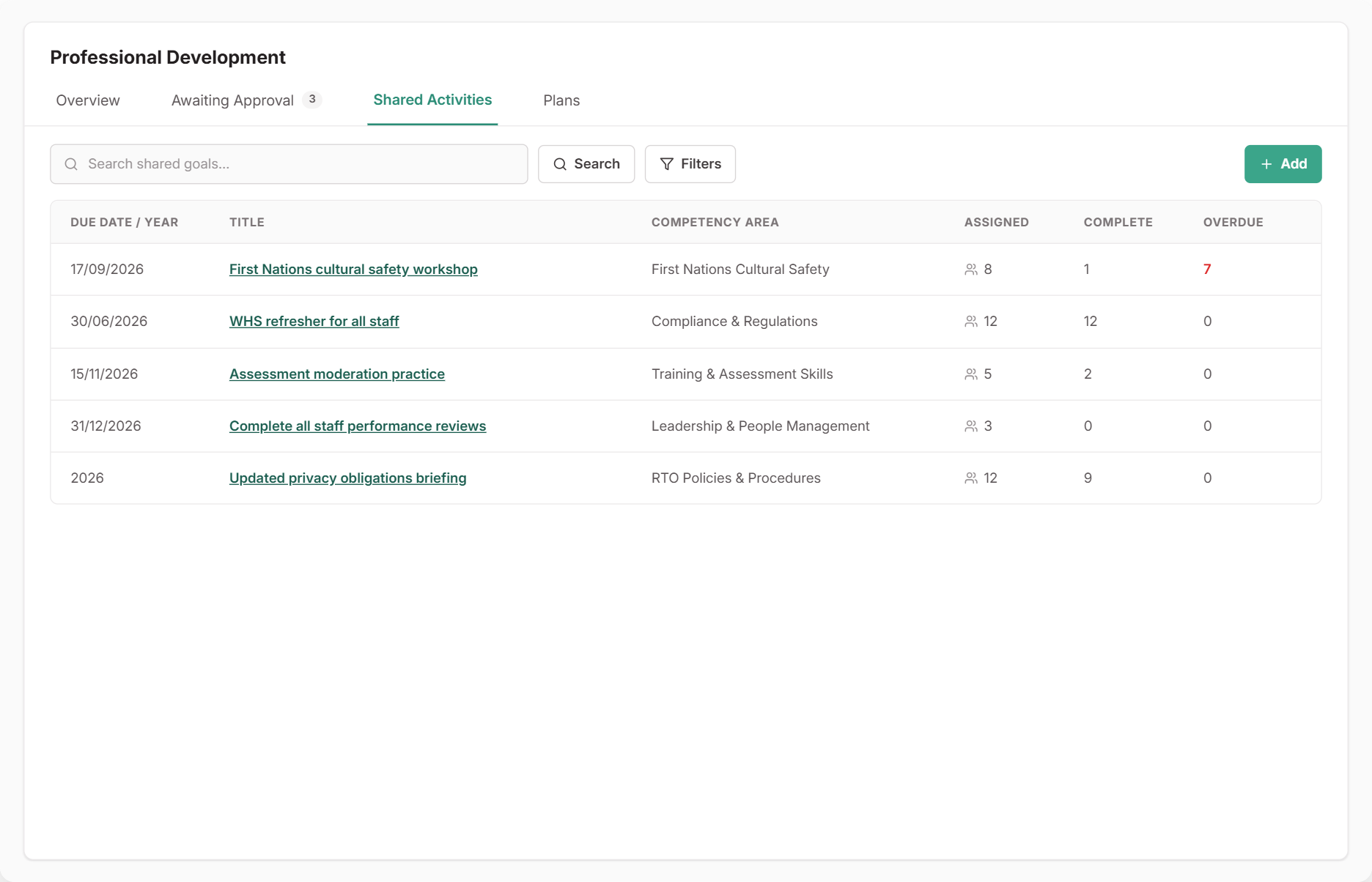
Go to Professional Development and select the Shared Activities tab
Select Add and enter the title, due date, competency area and any instructions
Open the shared activity and select Add people to choose the staff or departments who need it
Already added a specific activity to one person’s plan? Select Make this shared from its menu to turn it into a shared activity. Their existing evidence is kept.
Each assigned plan shows the activity with a Shared badge.
What Happens Next
- The shared activity’s page shows each person’s status, so you can follow up anyone who’s behind
- Edits to the shared activity update every assigned plan
- Removing someone, or archiving the shared activity, takes it off their plan
Shared activities aren’t carried over when you roll a plan forward. To run the same training next year, set up a new shared activity for that year.