
Approving PD Activities
Every new PD activity, whether a staff member or an admin adds it, starts as Waiting for Approval. It doesn’t count toward plan progress or trainer currency until it’s approved, so reviewing submissions promptly keeps your PD record accurate and your trainers’ currency up to date.
Spotting Submissions and Resubmissions
When a staff member submits an activity, or resubmits one you returned with Request changes, it goes to Waiting for Approval. RTOSafe doesn’t create a task for each submission. Instead, you can spot it in three places:
- Awaiting Approval tab: go to Professional Development and open the Awaiting Approval tab. Every activity waiting for review is listed here, including resubmitted ones, with when it was submitted and a Review button. The count on the tab shows how many are waiting.
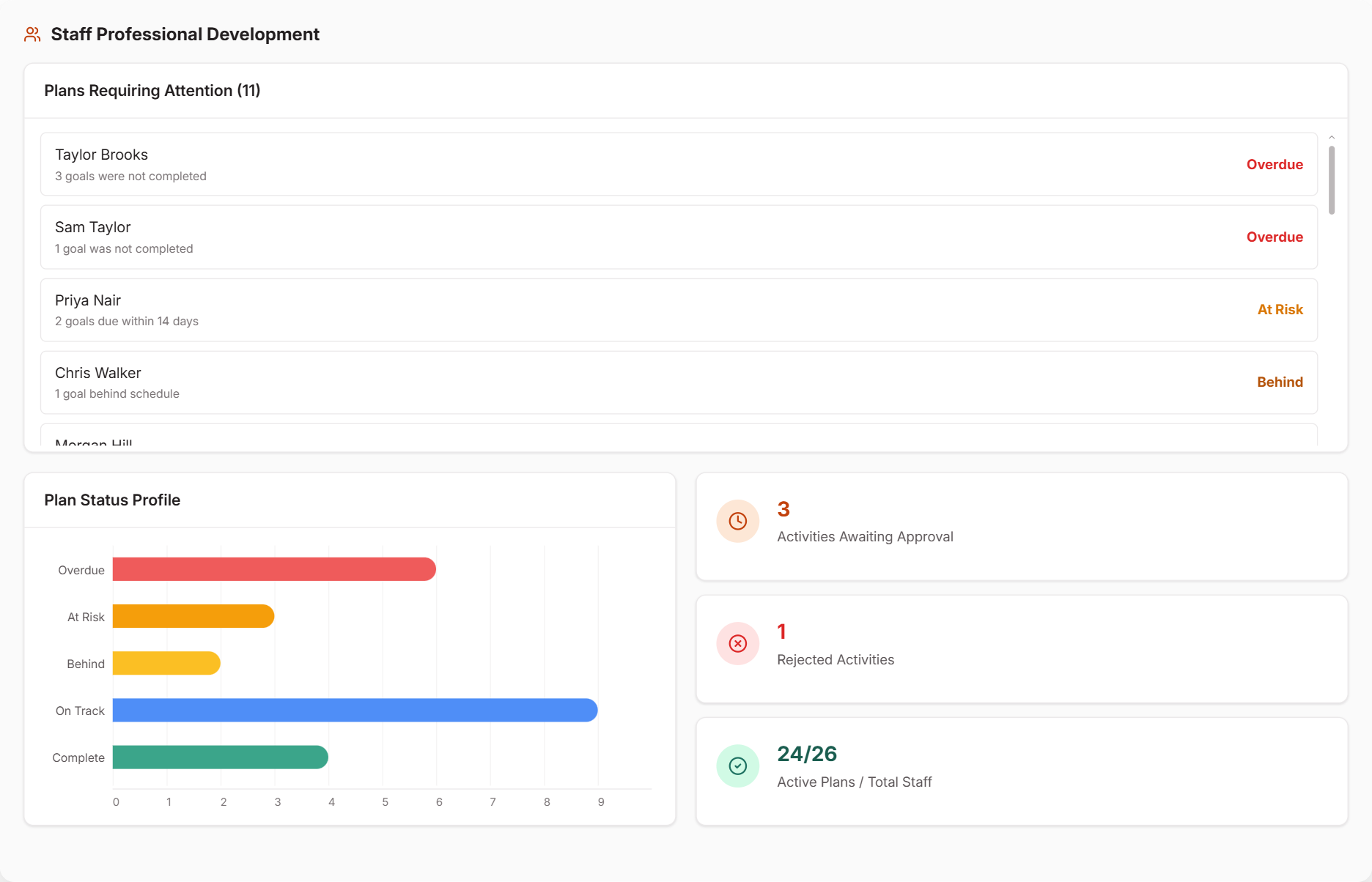
- Dashboard: an alert shows how many activities need to be reviewed, and the Staff Professional Development panel shows how many are awaiting approval or have been returned.
- Staff profile: on the staff member’s Professional Development page, activities waiting for review show as
Pendingand returned ones show asRejected.
If you don’t log in often, the weekly digest email is your safety net. It’s sent on Monday mornings and lists any open alerts, including activities waiting for review. It goes to all compliance admins unless you’ve chosen specific people in Settings → Notifications.
A resubmitted activity keeps the date it was first submitted, and the list shows the oldest first. Resubmissions can appear near the top of the Awaiting Approval list rather than at the bottom.
Approving Activities
Go to Professional Development and select the Awaiting Approval tab
Select Review on the activity and check the details and evidence
Select Approve, or Request changes with feedback explaining what needs fixing
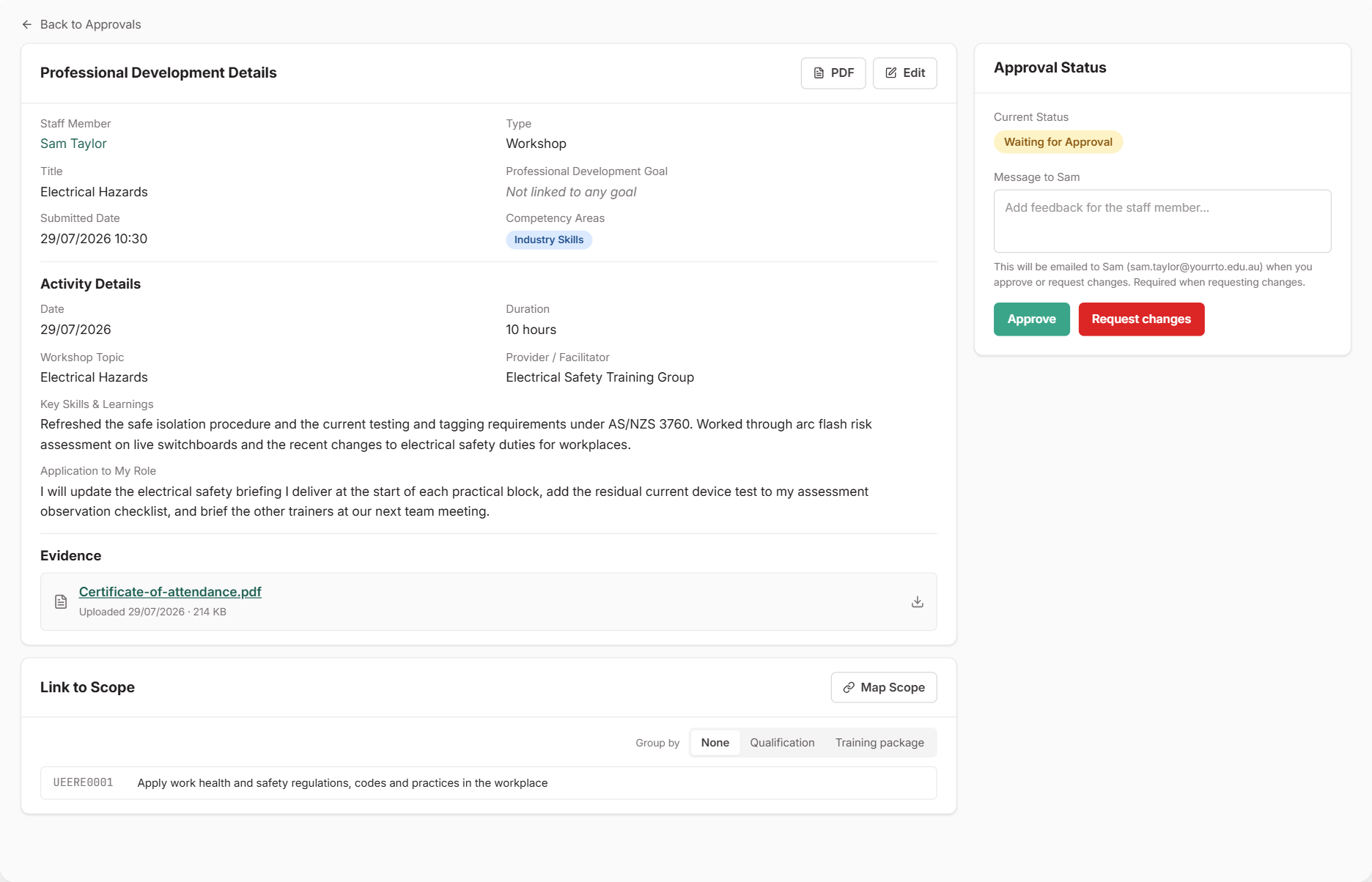
Any admin with Read/Write access can approve activities. See Set Up Access Profiles.
If you need to revisit a decision, select Reset Approval to send the activity back to Waiting for Approval.
What Happens Next
- Approved — the staff member is emailed, and the activity counts toward their plan and currency
- Changes requested — the staff member is emailed your feedback and sees the activity as Needs updating in the Staff Portal. When they resubmit, it comes back to Awaiting Approval
- Staff get a weekly reminder if a returned activity hasn’t been updated
Other PD Alerts
Alongside the approvals alert, your dashboard also flags:
- Overdue plans — staff with incomplete goals from past years. See Managing PD Plans and Goals
- Trainer currency gaps — trainers below your benchmark. See Setting Trainer Currency Benchmarks
Common Issues
I still have old PD review tasks
Older PD submissions created a review task. These still close automatically once you review the activity. If you no longer need one, open the task, select Edit, then Delete Task. New submissions don’t create tasks — find them in the places listed under Spotting Submissions and Resubmissions.
I can't see Approve or Request changes
These buttons only appear for admins with Read/Write access. Read-only admins can view the activity but can’t approve it. See Set Up Access Profiles.
The staff member didn't get an email
Approval and feedback emails are only sent when the Staff Portal is turned on and the staff member is active, has an email address and has a login. If they can log in to the Staff Portal, they’ll still see the outcome under My Professional Development.