
Offboard a Staff Member
When someone leaves, you’ll want to ensure they are offboarded well. RTOSafe checks for unfinished work before you deactivate them, and keeps all their records once they’ve gone.
Before You Start
You need Compliance Admin access. If the person is an admin themselves, only an admin with full write access can deactivate them.
Steps
Record their end date (optional)
Open the staff member in Staff and add an End Date to their Personal Details. It doesn’t turn off their access, so you can add it as soon as you know they’re leaving.
Start deactivating
Select Deactivate on their Personal Details. RTOSafe first shows any work that needs a new owner.
Hand over their work
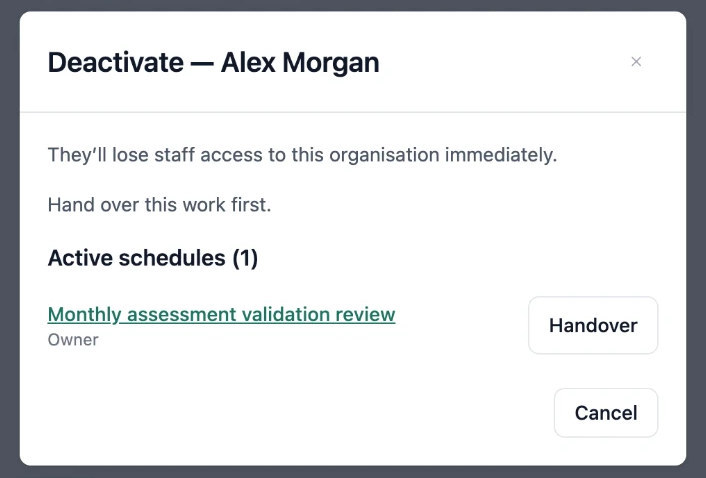
Give each active schedule a new owner with Handover, and reassign their upcoming tasks. Overdue tasks won’t stop you deactivating, but reassign them too if the work still matters.
Deactivate
Once nothing is left to hand over, select Deactivate.
Check What Else They Look After
RTOSafe won’t stop you deactivating someone who is still named against other records, but each of these should have a current owner. Check whether they were responsible for any:
- risks or risk controls on your risk register
- continuous improvements
- complaints
- open incidents or hazards
- policies or documents they own
- facilities
Reassign these to someone who’s staying, so every open item still has a person accountable for it.
What Happens Next
- They lose access straight away and move from Current Staff to Previous Staff.
- Their records, documents, professional development and history all stay in RTOSafe.
- Any policy agreements they hadn’t completed are closed off, so they no longer count as outstanding.
- If they received notifications, such as for new complaints, RTOSafe prompts you to choose someone else.
- You can reactivate them later from the same button, as long as you’re within your staff limit.