
Assign Scope
Staff scope defines which training products each trainer or assessor can deliver. When you assign scope to a staff member, you’re recording which units they’re qualified to train, assess, or both.
Assigning Scope
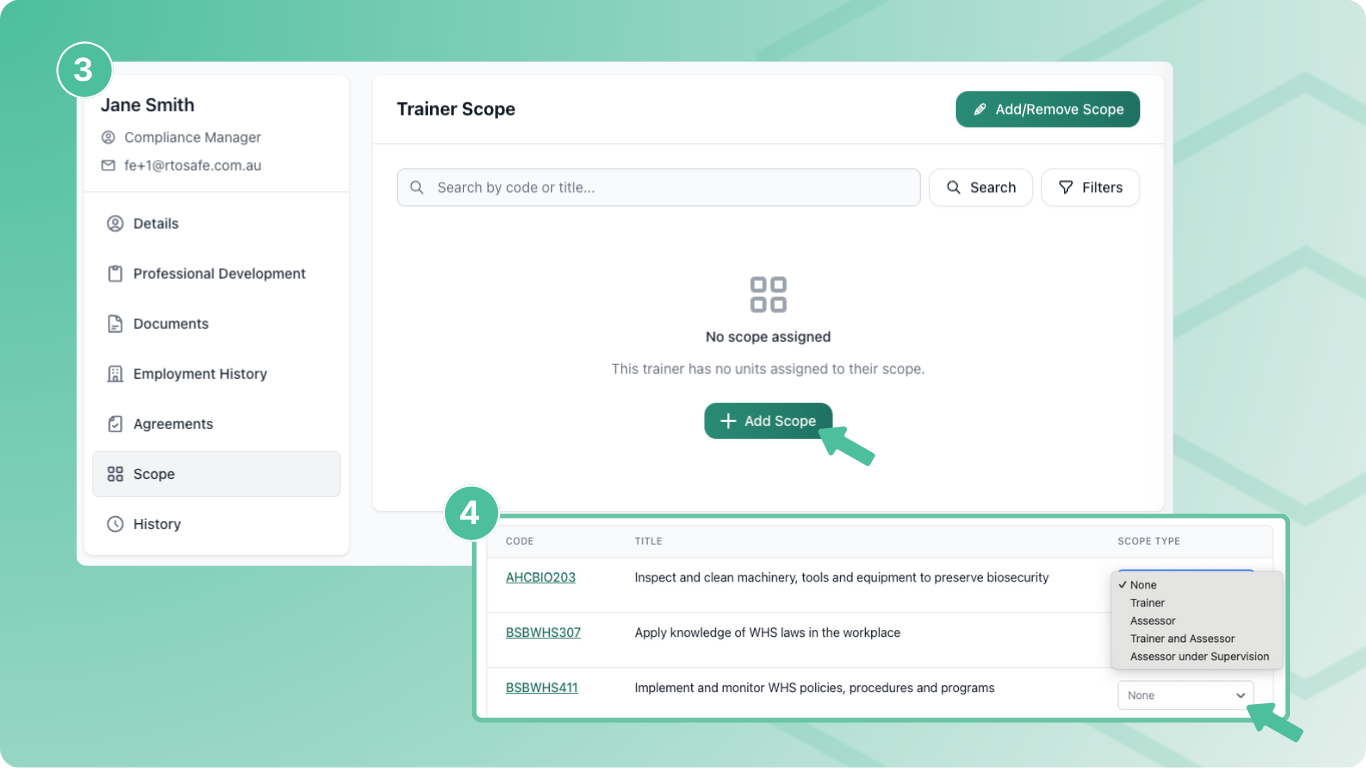
Go to Staff and open the staff member’s profile
Select Scope from the sidebar
Select Add Scope
For each unit, choose a scope type from the dropdown:
- Trainer — can deliver training only
- Assessor — can assess only
- Trainer and Assessor — can do both
- Assessor under Supervision — can assess with oversight
Changes save automatically as you select each scope type.
Update Multiple Units at Once
Setting scope one row at a time is slow when a trainer covers a lot of units. You can tick several and apply the same scope type in one go.
Tick the checkbox next to each unit you want to change — or tick the header checkbox to select everything. Hold Shift and click a second row to select a range.
On the bar that appears at the bottom of the page, click Scope Type and choose what to apply. Pick None to remove the trainer from those units.
Confirm when prompted.
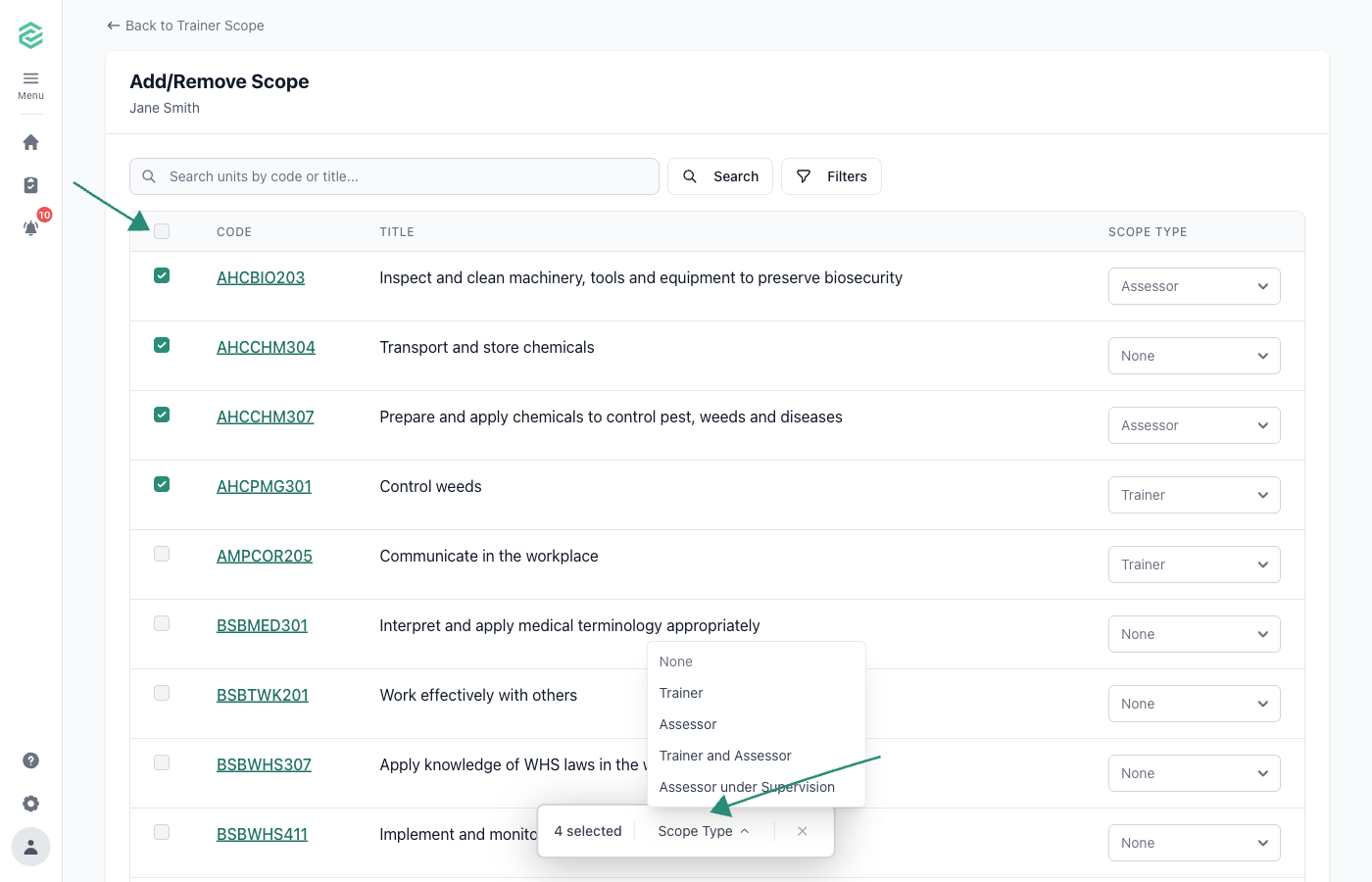
You can update up to 50 units at a time.
Setting scope for a brand-new trainer across hundreds of units? Bulk Scope Import takes a CSV and is quicker for large first-time imports.
What Happens Next
- Assigned units appear in the staff member’s Scope tab
- The Trainer Matrix report shows their scope alongside competency evidence
- PD requirements that are unit-based will now apply to this staff member for these units
- You can now link PD activities and documents to these units as evidence
Common Issues
Unit not appearing in the list
The unit isn’t in your RTO’s active scope — check it’s synced and set up for delivery. See Set Up Delivery.
Staff member not showing in reports
They may not have a trainer scope type set on their profile