<!-- RTOSafe Help — rendered version: https://rtosafe.com.au/help/staff-my-documents -->

# Upload and Renew Your Documents

Your RTO needs to keep copies of your qualifications, licences and checks — like your TAE, First Aid or Working with Children Check. You can upload them yourself in **My Documents**, and see straight away if anything's missing or about to expire.

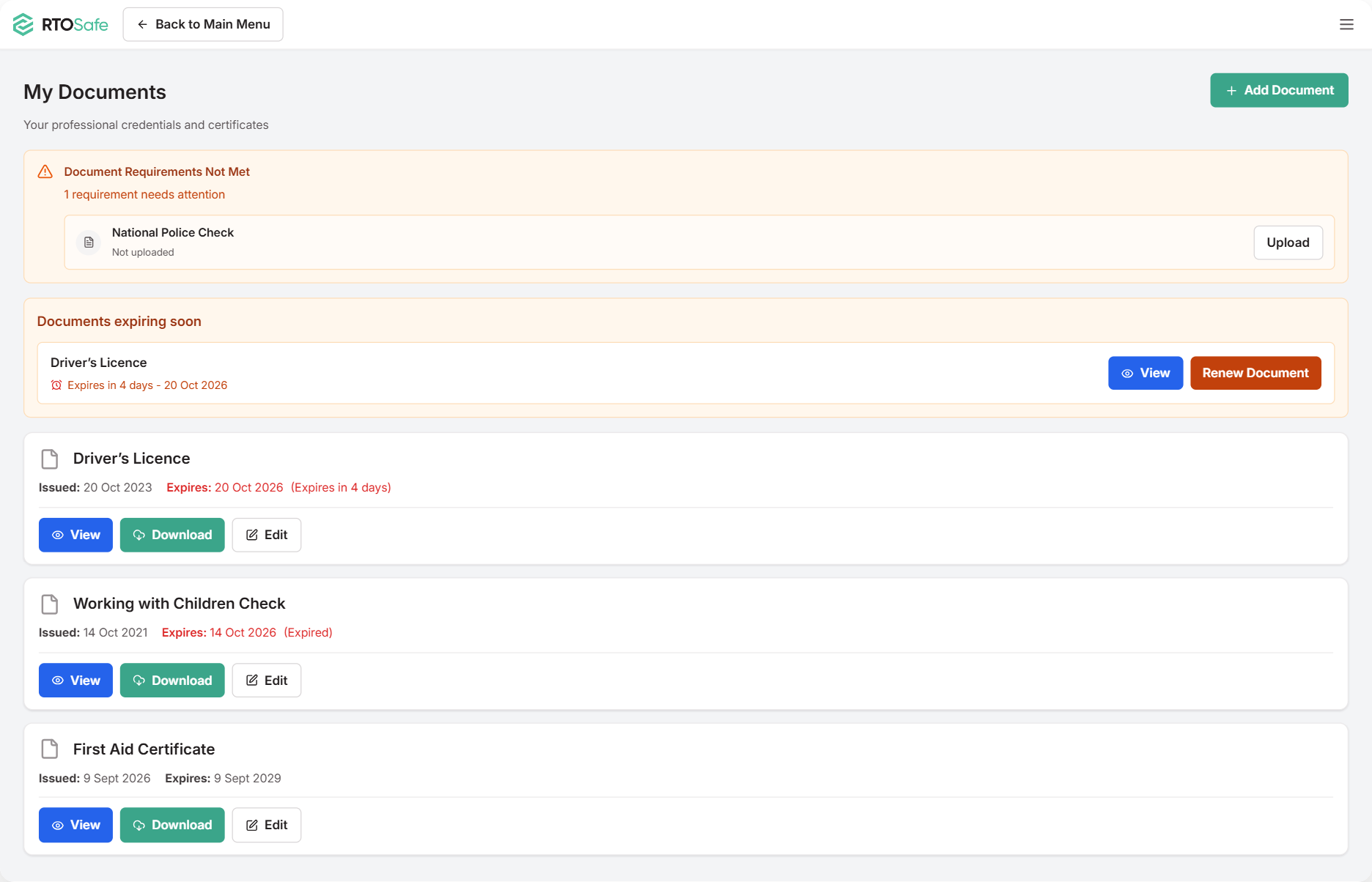
<figure><img src="/help/assets/staff-my-documents-1.png" alt="My Documents in the Staff Portal, showing a National Police Check requirement that has not been uploaded with an Upload button, a Documents expiring soon box with a Renew Document button for a driver's licence, and the staff member's documents with their issue and expiry dates"><figcaption></figcaption></figure>

***

## Uploading a Document

<div class="help-stepper">

<div class="help-step">
<div class="help-step-number">1</div>
<div class="help-step-content">

Open **My Documents** and select **Add Document**

If something's listed as missing at the top, you can select **Upload** next to it instead.

</div>
</div>

<div class="help-step">
<div class="help-step-number">2</div>
<div class="help-step-content">

Choose what you're uploading

* **A training product** — a qualification or unit from training.gov.au. Search for the full code, like `TAE40122`.
* **A certification, licence, or check** — First Aid, WWCC, police check, licences and so on.

</div>
</div>

<div class="help-step">
<div class="help-step-number">3</div>
<div class="help-step-content">

Fill in the dates and details, and upload a copy of the document

For a qualification, upload your **Record of Results** too — it's the document that shows which units you completed.

</div>
</div>

<div class="help-step">
<div class="help-step-number">4</div>
<div class="help-step-content">

Select **Add Document**

</div>
</div>

<div class="help-step">
<div class="help-step-number">5</div>
<div class="help-step-content">

If it's a qualification, tick the units you completed. If it's a certification, link it to the units it relates to.

</div>
</div>

</div>

***

## Renewing a Document

When something's due to expire within 60 days, it shows under **Documents expiring soon**. Select **Renew Document** and upload the new one with its new dates.

If it's already expired, it drops out of that box — select **Add Document** (or **Upload**, if it's listed at the top) and choose the same type.

You'll also get emails 60, 30 and 7 days before it expires, and again once it has.

Don't edit the old document — add the renewal as a new one. Your RTO keeps both, so there's a record of each version.

***

## What Happens Next

Your RTO checks and verifies each document. Until then, it shows as **Awaiting Verification**. Once it's verified, it's locked — you won't be able to edit it.

***

## Common Issues
<details>

<summary><strong>I uploaded the wrong file</strong></summary>

If it's still awaiting verification, select **Edit** next to it in **My Documents**. If it's already verified, ask your compliance team to fix it.

</details>

<details>

<summary><strong>I can't find my qualification or unit</strong></summary>

Type the full code with no spaces, like `CHCMHS008`. If nothing comes up, select **Search in training.gov.au**.

</details>

<details>

<summary><strong>A document is still showing as missing</strong></summary>

Check you chose the right type when you uploaded it. It'll also keep showing as needing attention until your RTO verifies it.

</details>