# Staff Documents
Staff documents track credentials (like First Aid and TAE qualifications), employment records, and other files. Staff can upload their own documents through the Staff Portal, or you can add them on their behalf.
***
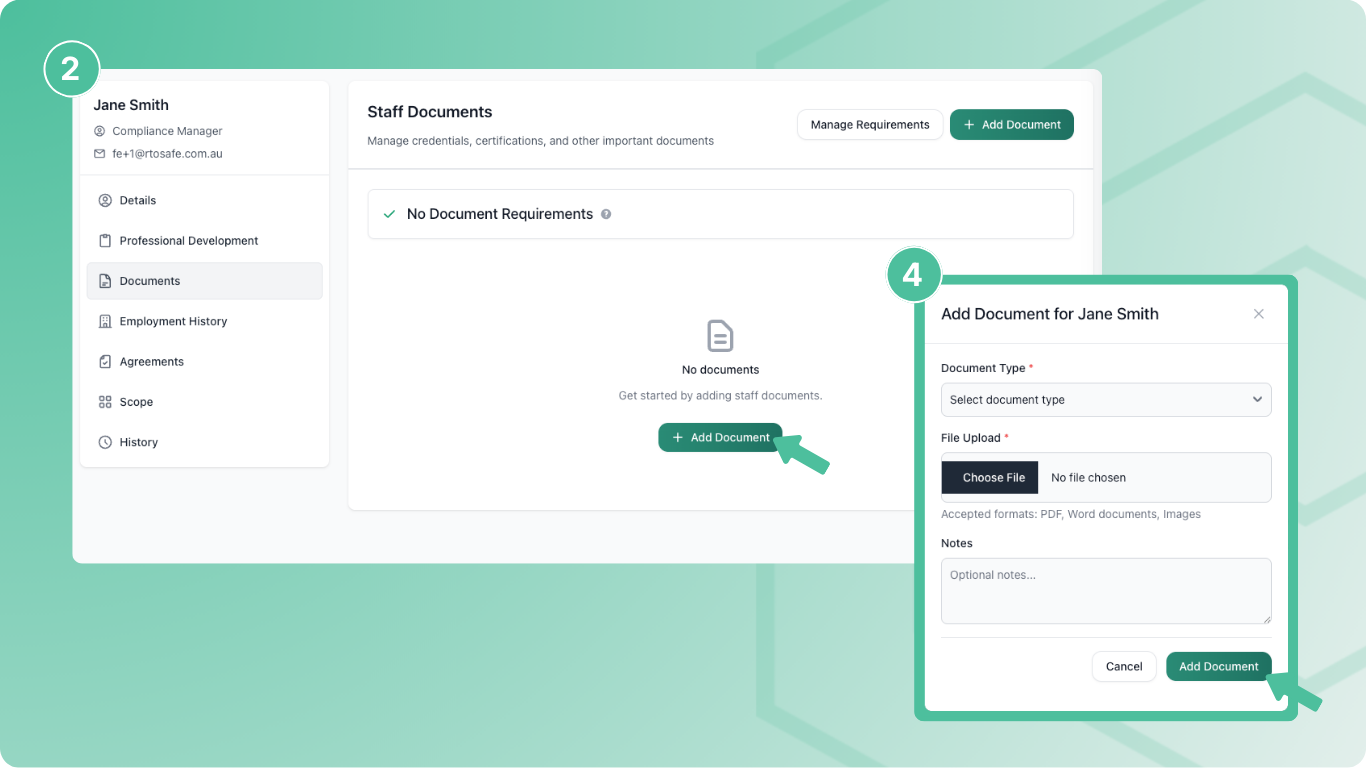
## Adding a Document
1
Go to the staff member's profile and select the **Documents** tab
2
Select **Add Document**
3
Choose the document type and upload the file
The form changes based on the document type — expiring credentials ask for expiry dates, qualifications ask for the issuing provider.
4
Select **Add Document**
***
## Verifying Documents
Verification confirms you've checked a document is genuine. Once verified, a document can't be edited.
1
Open the document from the staff member's documents page
2
Select **Verify Document**
3
Optionally add verification notes (how you verified it) and upload evidence
4
Select **Verify**
Verification is required before a document can be used as evidence. It confirms you've checked the document is genuine.
***
## Expiry Notifications
For expiring credentials, RTOSafe sends automatic email reminders:
* 60 days before expiry
* 30 days before expiry
* 7 days before expiry
* On the expiry date
These go to both the staff member and compliance admins.
***
## What Staff See
In the Staff Portal, staff can:
* View their required documents and what's missing
* Upload their own documents
* See expiry dates and verification status
They can't verify their own documents — that's an admin function.
***
## Common Issues
Can't edit a document
Verified documents can't be edited. Remove the verification first if you need to make changes.
Staff uploaded the wrong file
Ask them to upload a new document — you can then archive the incorrect one.
Expiry notifications not sending
Check the staff member has a valid email address and hasn't unsubscribed from notifications.