# Renew a Credential
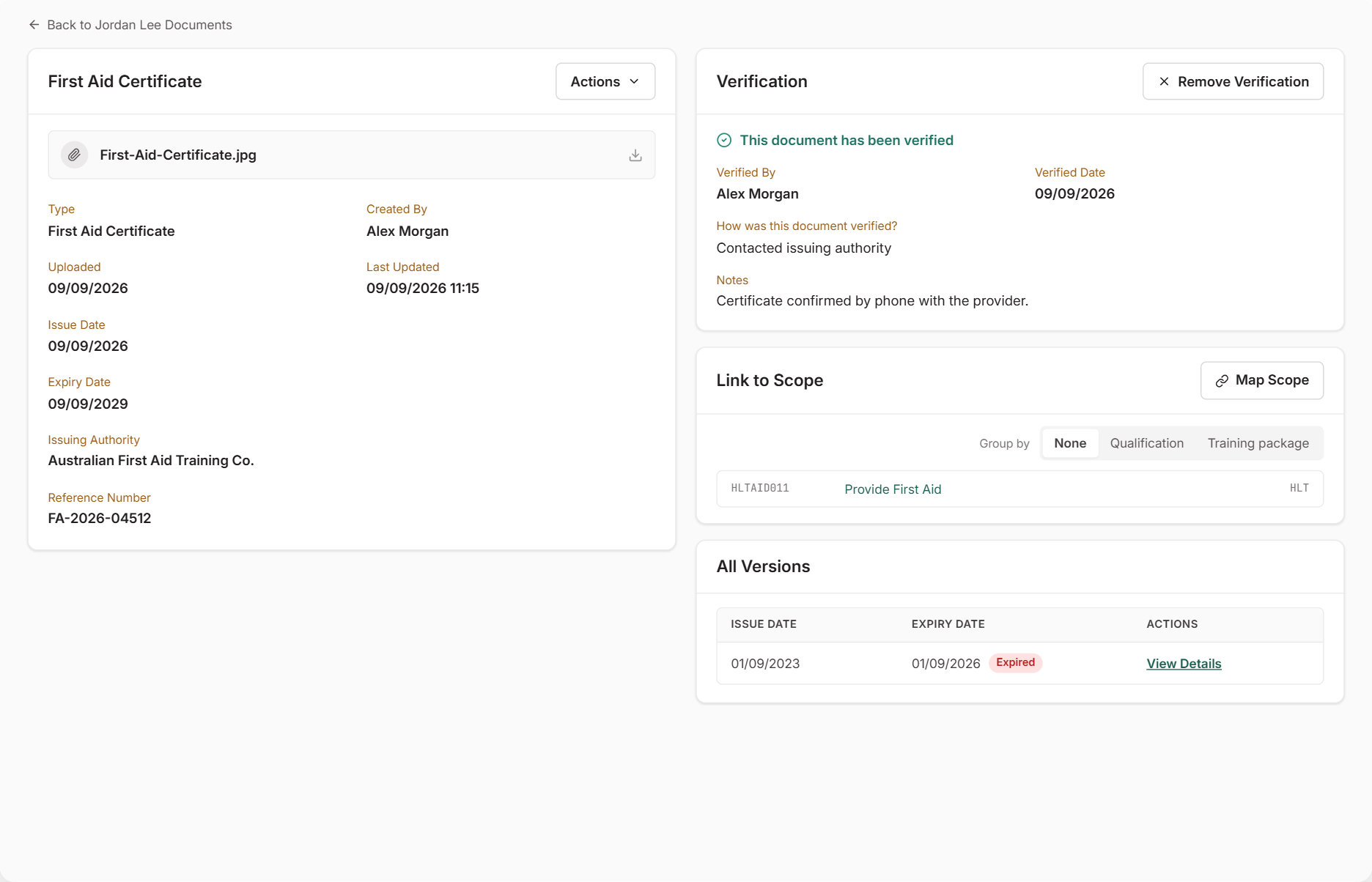
When a staff member renews an expiring credential — a First Aid certificate, WWCC or High Risk Work Licence — add the new one as a **new document**. Don't edit the expired one. RTOSafe links them together, so you keep a full history of every version for audit.
***
## Adding the Renewed Credential
1
Go to the staff member's profile and open the **Documents** tab
2
Select **Add Document** and choose **A certification, licence, or check**
If the requirement has already expired, you can select **Upload new** next to it in the requirements panel instead.
3
Choose the **same certification type** as the old one (for example, High Risk Work Licence)
4
Upload the renewed file and enter the new issue date, expiry date, issuing authority and reference number, then select **Add document**
5
[Verify](/help/staff-documents#verifying-documents) the new document
You don't need to archive the old one first.
***
## How Versions Work
RTOSafe groups expiring credentials of the same type into one record:
* **The one with the latest expiry date is the current version.** It's the one shown on the **Documents** tab, checked against requirements, and used for reminder emails.
* **Older versions move to the All Versions card** on the current document's page, with their issue and expiry dates.
Versions only apply to **expiring credentials**. Qualifications and other non-expiring documents don't get replaced — each stays on the list as its own record.
***
## What Happens Next
* The requirement clears once the new version is verified
* Reminder emails restart for the new expiry date
* When the Staff Portal is enabled, staff can also renew their own documents — see [Upload and Renew Your Documents](/help/staff-my-documents)
***
## Common Issues
The old version is still showing as current
Check the new document's expiry date — RTOSafe treats the one with the latest expiry as current. Also check you chose the same certification type; a different type creates a separate record.
The requirement still shows an issue
The new version needs to be verified before it counts.
I edited the old document instead
Editing replaces the old dates and file, so the previous version drops out of the history. If you still have the old file, edit the document back to its original details, then add the renewal as a new document.