# Set Up Staff Agreements
Uploading a policy doesn't automatically ask staff to agree to it. You need to connect the dots: tell RTOSafe which **departments** need to agree to which **policy categories**, then make sure your staff are in the right department. Once that's done, agreement requests are sent automatically.
***
## Before You Start
* Your policies need to be [uploaded](/help/uploading-policies) — each one sits inside a category (e.g. Staff Management, Governance)
* You'll need at least one department set up in [**Settings → Departments**](https://app.rtosafe.com.au/Settings/Departments) — new accounts come with defaults you can use or edit
***
## Steps
1
**Link policy categories to a department**
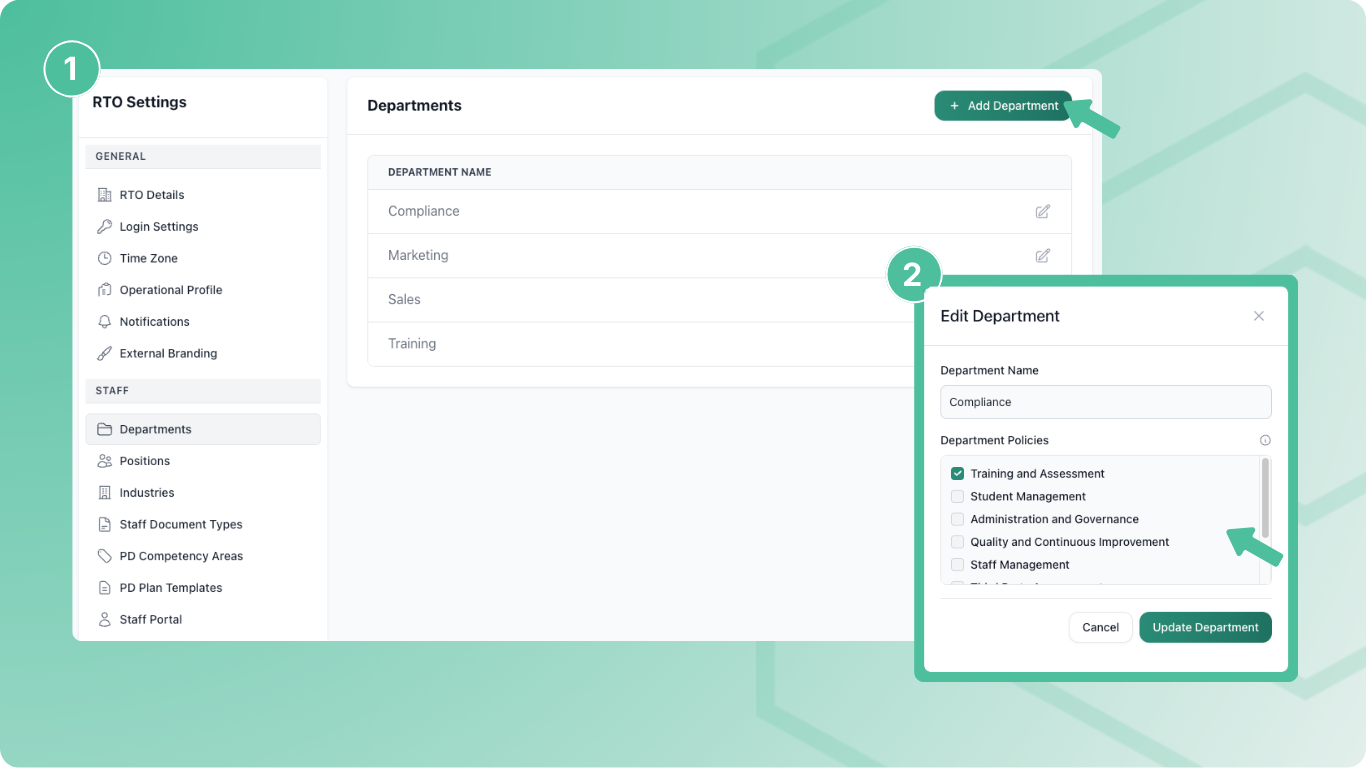
Go to [**Settings → Departments**](https://app.rtosafe.com.au/Settings/Departments) and select **Edit** next to the department (or create a new one with **Add Department**).
You'll see a list of policy categories. Tick every category that staff in this department should agree to.
For example, an "All Staff" department might need Staff Management, Administration, and Governance — while a "Trainers" department might also need Training and Assessment.
2
**Make sure staff are assigned to the department**
When you [add a staff member](/help/adding-staff) or edit their profile, set their department. RTOSafe then creates agreement requests for every policy in that department's linked categories.
**Already uploaded policies but staff can't agree to them?** The most common reason is that the policy's category isn't ticked on the staff member's department. Go to [**Settings → Departments**](https://app.rtosafe.com.au/Settings/Departments), edit the department, and tick the missing category.
***
## What Happens Next
* Staff see their pending agreements in the Staff Portal and can read and accept each policy
* When you upload a new policy to a linked category, staff in that department automatically get a new agreement request
* When you [create a new version](/help/policy-versions) of a policy, existing agreements expire and staff need to agree again
***
## Common Issues
Uploaded policies but no option for staff to agree
Check that the policy's category is ticked on the department in [**Settings → Departments**](https://app.rtosafe.com.au/Settings/Departments), and that staff are assigned to that department.
Some staff got agreement requests but others didn't
Staff only get requests for categories linked to their department. If certain staff need extra policies, either add those categories to their department or move them to a department that includes them.
Can't delete a department
Departments can only be deleted if no staff are assigned to them. Reassign or deactivate staff first.