# Add Risks from the Library
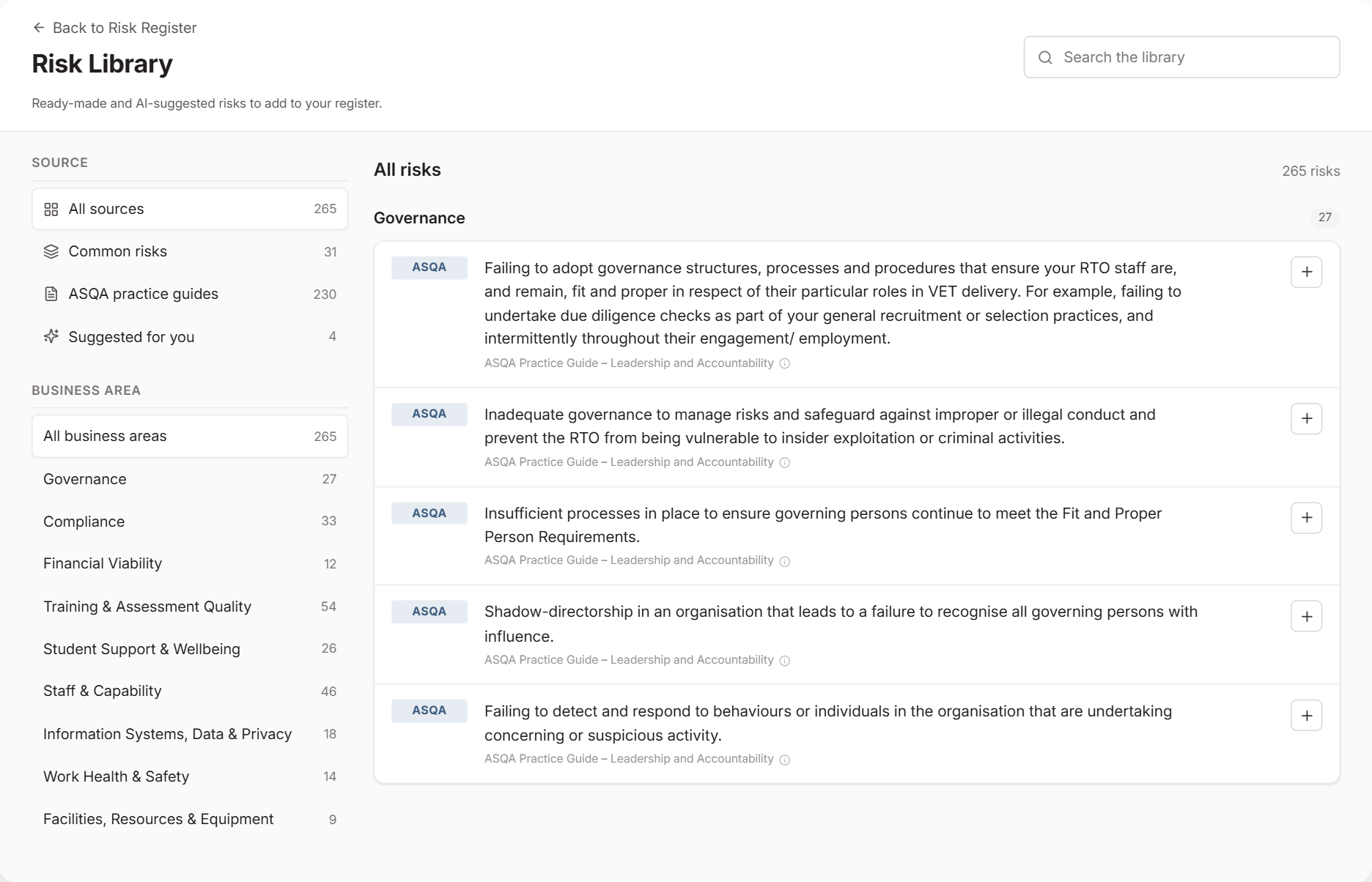
The Risk Library gives you a starting point for your register. Instead of writing every risk from scratch, pick the ones that apply to your RTO and adjust them as you add them.
***
## When to Use This
Use the library when you're building your register or checking it for gaps. To think through a risk you've already added, use the [risk assistant](/help/risk-register-assistant).
***
## Choose Where Risks Come From
From [**Risk**](https://app.rtosafe.com.au/Risk), select **Risk library**. Under **Source**, choose:
* **Common risks:** ready-made risks that ASQA's practice guides don't cover, such as continuity, cyber, data and AI.
* **ASQA practice guides:** risks taken from ASQA's practice guides. Choose a guide to see only its risks.
* **Suggested for you:** AI suggestions based on your Operational Profile and what's already on your register.
Narrow the list by **Business area**, or use **Search the library**.
***
## Add a Risk
Select the add button (**+**) beside a risk. Then:
1. Check the wording. You can reword common and suggested risks. ASQA risks keep ASQA's wording.
2. Rate the likelihood and impact before controls.
3. Check the risk owner. If you're on your organisation's staff list, it starts as you.
4. Choose a **Status**. `Active` needs a **Next Review Date**. Choose `Draft` if you'd like to finish it later.
5. Select **Add Risk**.
Risks you've added show a tick. Select **Open** to go to the risk on your register.
Once you've filtered or searched, **Add all** adds every risk left in the list as a draft with no rating. Rate each one before making it active.
***
## Get Better Suggestions
**Suggested for you** works from your Operational Profile, so complete it first at [**Settings → Operational Profile**](https://app.rtosafe.com.au/OperationalProfile). Suggestions can take up to a minute to appear. The rest of the library works while you wait.
If you update your profile, select **Refresh suggestions**. Always read AI suggestions before adding them to your register.
***
## What Happens Next
[Add controls and record an assessment](/help/risk-register-controls) for each risk you add.
***
## Common Issues
I can't see Add all
**Add all** appears once you've chosen a source, guide or business area, or searched. It's hidden when only one risk is left to add.
Suggested for you is empty
Complete your Operational Profile, then select **Refresh suggestions**. Suggestions leave out risks your register and the library already cover.