<!-- RTOSafe Help — rendered version: https://rtosafe.com.au/help/public-portal -->

# Set Up Your Public Portal

Your Public Portal is the public side of RTOSafe: the pages students, employers and the public can open without logging in. It's one switch that every public form and public policy depends on, so turn it on before you set up complaints or appeals.

***

## What the Public Portal Powers

When the Public Portal is on, these can be shared publicly:

* your [public complaints form](/help/complaints-public-form)
* your [public appeals form](/help/appeals-lodge), and the independent review link in appeal outcome emails
* [public policies](/help/public-policies), such as your complaints and appeals policies
* [shared feedback forms](/help/feedback-forms-sharing)
* [Quality Indicator surveys](/help/quality-indicators)

If the Public Portal is off, every one of these shows "not found", including links you've already put on your website or sent in emails.

***

## Steps

<div class="help-stepper">

<div class="help-step">
<div class="help-step-number">1</div>
<div class="help-step-content">

**Switch on the Public Portal**

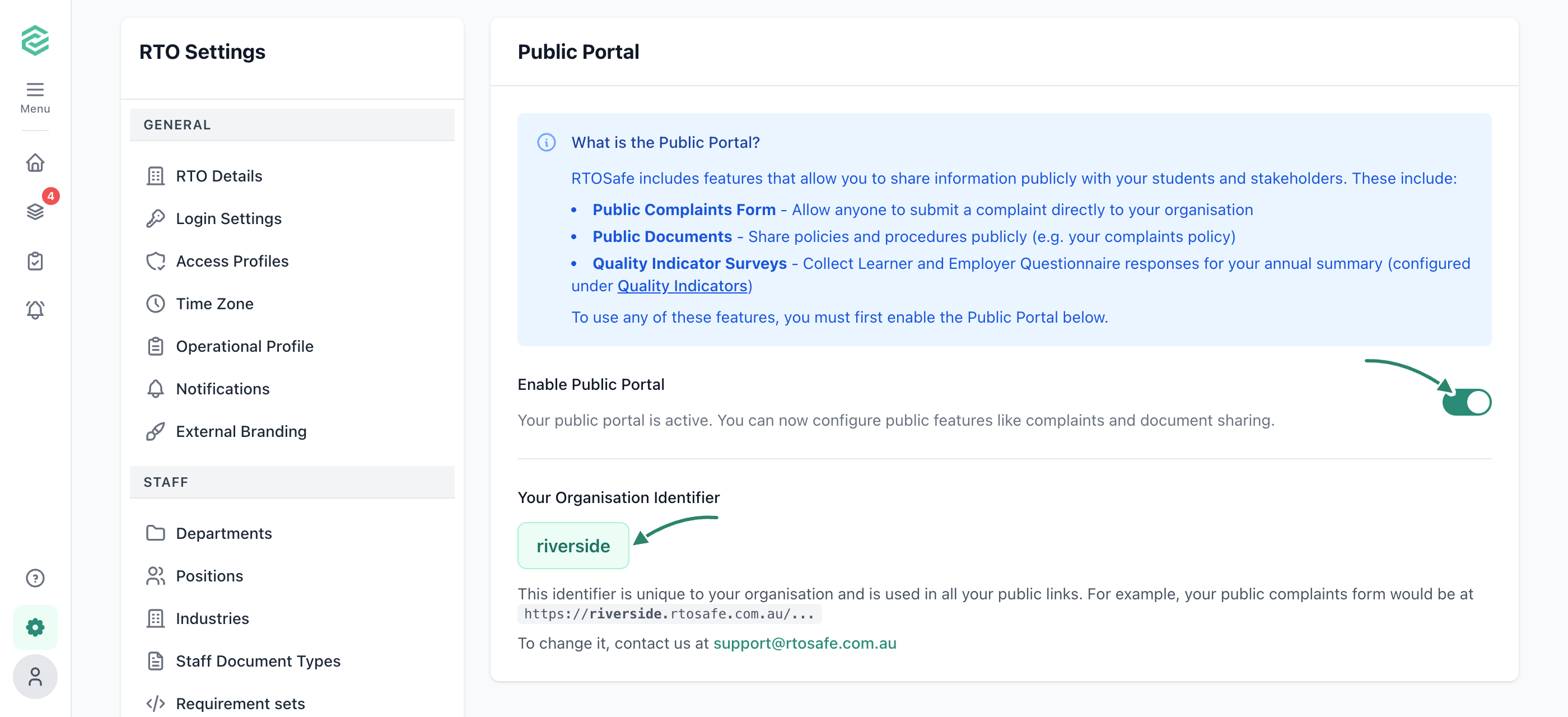
Go to [**Settings → Public Portal**](https://app.rtosafe.com.au/PublicPortalSettings) and turn on **Enable Public Portal**.

</div>
</div>

<div class="help-step">
<div class="help-step-number">2</div>
<div class="help-step-content">

**Check your organisation identifier**

RTOSafe gives your organisation an identifier, based on your name, that appears in every public link, for example `https://yourrto.rtosafe.com.au/...`. To change it, contact support before you share any links.

</div>
</div>

<div class="help-step">
<div class="help-step-number">3</div>
<div class="help-step-content">

**Make your policies public**

Forms link to your policies, so the policies themselves must be public. [Make a policy public](/help/public-policies) for each one students need to read, such as your complaints and appeals policies.

</div>
</div>

<div class="help-step">
<div class="help-step-number">4</div>
<div class="help-step-content">

**Set up the forms you need**

Now you can [set up complaints](/help/complaints-setup), [set up appeals](/help/appeals-setup), share feedback forms or send Quality Indicator surveys.
</div>
</div>

</div>

<figure><img src="/help/assets/public-portal-1.png" alt="Settings, Public Portal page explaining what the portal powers, with arrows pointing to the Enable Public Portal switch turned on and the organisation identifier, riverside, used in public links such as https://riverside.rtosafe.com.au"><figcaption></figcaption></figure>

***

## What Happens Next

* Leave the Public Portal on while complaints or appeals are switched on.
* Your complaints and appeals settings only list public policies, and the policy you select there stays public until you choose a different one.

***

## Common Issues

<details>
<summary><strong>Why isn't my policy in the complaints or appeals settings list?</strong></summary>

Only public policies are listed. Check the Public Portal is on, then [make the policy public](/help/public-policies).

</details>

<details>
<summary><strong>Why can't I make a policy private again?</strong></summary>

It's selected as your complaints or appeals policy, so it has to stay public. Choose a different policy in [**Settings → Complaints**](https://app.rtosafe.com.au/ComplaintsSettings) or [**Settings → Appeals**](https://app.rtosafe.com.au/AppealsSettings) first.

</details>

<details>
<summary><strong>Why do my public links show "not found"?</strong></summary>

The Public Portal has been switched off. Turn it back on in [**Settings → Public Portal**](https://app.rtosafe.com.au/PublicPortalSettings) and your existing links will work again.

</details>