# Meeting Templates
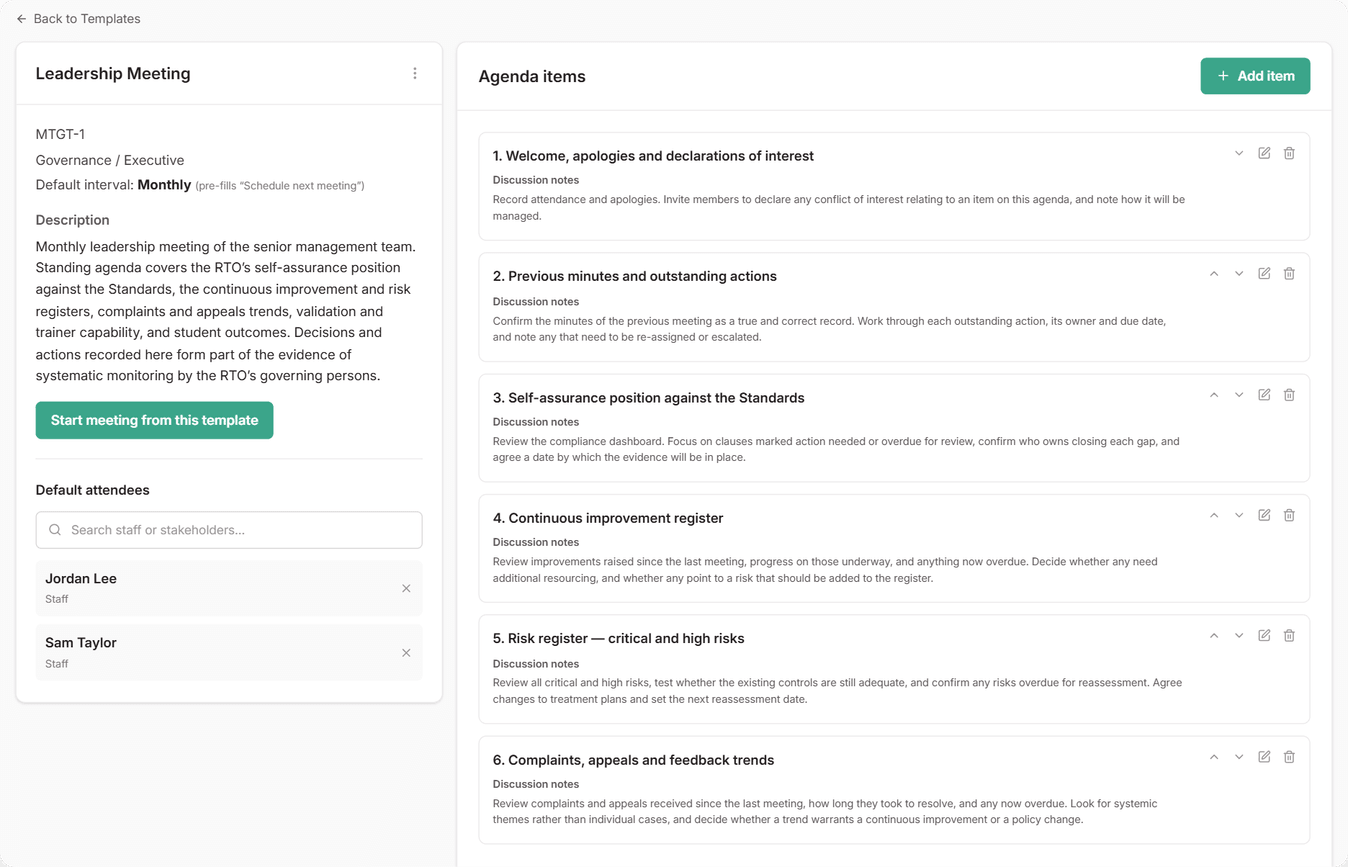
Most RTOs run the same meetings over and over: quarterly governance meetings, validation meetings, industry engagement and performance reviews. A template holds the agenda and attendees for a meeting like this, so each one starts with the same structure and nothing gets left off.
Consistent agendas also make your record easier to follow. Anyone reviewing your meetings can see the same topics covered every time.
***
## What a Template Includes
* A category
* Agenda items, each with an optional discussion prompt. The prompt pre-fills the item's notes, for example "Review open risks rated High or above".
* Default attendees: staff members, stakeholders, or both
* An optional default interval (weekly, monthly, quarterly, six-monthly or annually) for scheduling the next meeting
Notes, decisions and actions are never part of a template. Every meeting starts fresh.
***
## Create a Template
**From a meeting you've already run (quickest):** open the meeting, open the menu and choose **Save as template**. The agenda items are copied across.
Leave **Include participants** ticked to copy the attendees too. Untick it for meetings you hold with different people each time, like performance reviews.
**From scratch:** go to [**Meetings**](https://app.rtosafe.com.au/Meetings), select **Templates**, then **New Template**. Once it's saved, open the template to add its agenda items and default attendees.
***
## Create a Meeting From a Template
On the [**Meetings**](https://app.rtosafe.com.au/Meetings) page, choose **Start from template** and pick a template. You can also open a template and select **Start meeting from this template**. Enter the title, date and time, then select **Create Meeting**. The agenda items and default attendees are added for you, and you can adjust them for that meeting.
The meeting shows which template it came from, and you can filter the register by template.
***
## Schedule the Next Meeting
For any meeting created from a template, choose **Schedule next meeting** from the meeting's menu. Once the meeting is completed, this also appears as a button on the page.
The date is pre-filled using the template's default interval, and the time matches the current meeting. Select **Create next meeting** to create it with the same agenda and attendees. The completed meeting then links to the next one.
No meetings are created automatically. The next meeting is only created when someone selects **Schedule next meeting**.
***
## Changing or Archiving a Template
Changes to a template only affect meetings created from it afterwards. Meetings you've already created stay as they are.
If you stop holding a meeting, archive its template. It won't appear under **Start from template** anymore, and its past meetings are kept. You can open an archived template and choose **Restore from archive** at any time.
***
## Common Issues
There's no Start from template button
You don't have any active templates yet. Create one first, or restore an archived one.
Schedule next meeting doesn't appear
The meeting wasn't created from a template, or its template has been archived. Use **Save as template** to start one.
The next meeting has the same date as the last one
The template has no default interval. Change the date before you create the meeting, or set an interval on the template.