<!-- RTOSafe Help — rendered version: https://rtosafe.com.au/help/hazards -->

# Manage Workplace Hazards

The [**Hazards**](https://app.rtosafe.com.au/Hazards) register tracks unsafe conditions from the moment someone spots them until they're dealt with. Reports come from staff in the Staff Portal, or from admins who select **Report Hazard**.

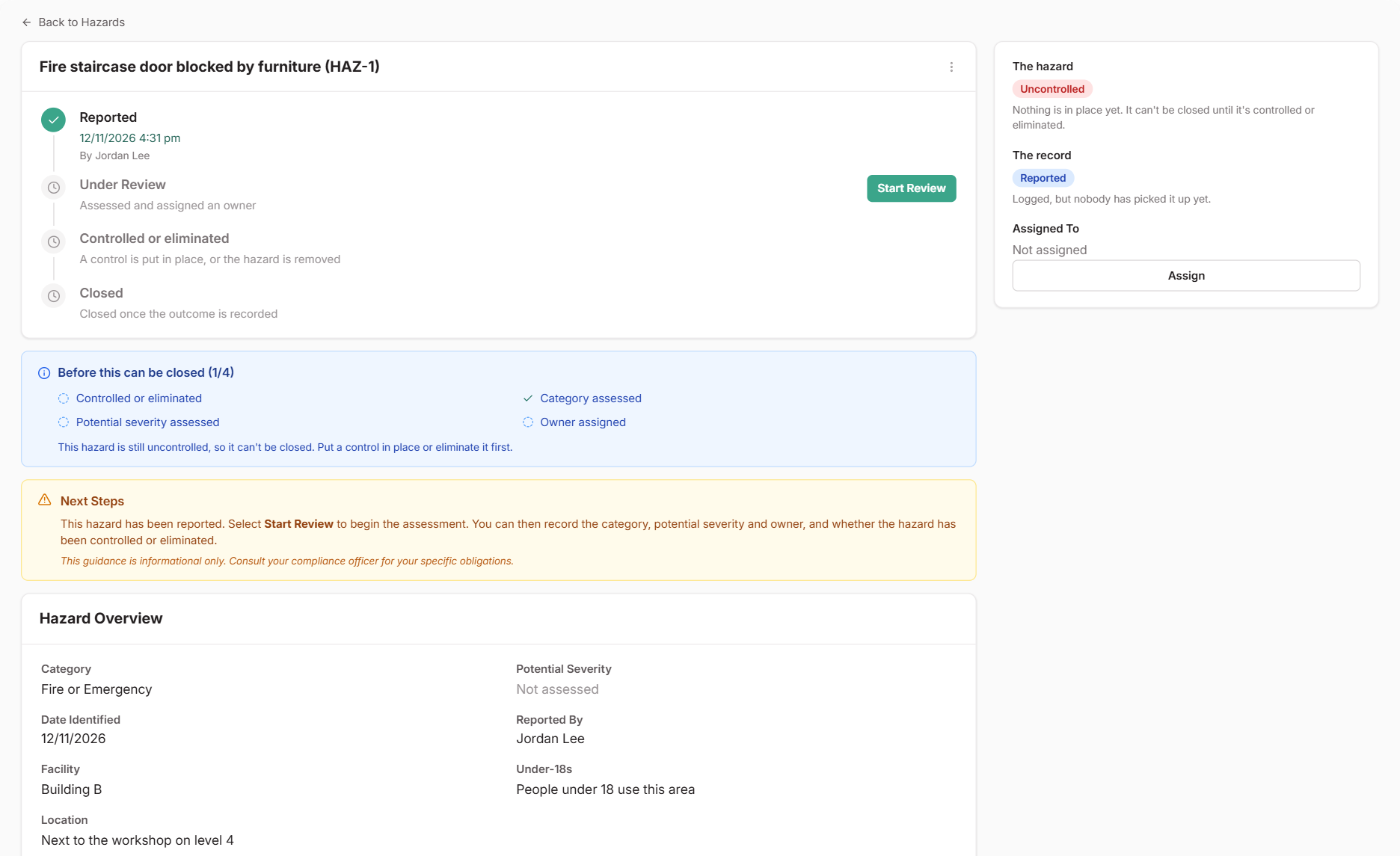
Each hazard tracks two things: where your review is up to, and whether the hazard is still there. A hazard is `Controlled` when a control is in place but the hazard remains, and `Eliminated` when it's gone.

<figure><img src="/help/assets/hazards-1.png" alt="A newly reported hazard, with the Start Review and Assign buttons, the checklist of what's needed before it can be closed, and the hazard shown as Uncontrolled"><figcaption></figcaption></figure>

***

## Steps

<div class="help-stepper">

<div class="help-step">
<div class="help-step-number">1</div>
<div class="help-step-content">

**Start the review**

Open the hazard and select **Start Review**.

</div>
</div>

<div class="help-step">
<div class="help-step-number">2</div>
<div class="help-step-content">

**Assess it and assign an owner**

Select **Assign** to choose who owns it. Then select **Update Assessment** to set the category and **Potential severity**: how bad it could be, not how bad it was.

</div>
</div>

<div class="help-step">
<div class="help-step-number">3</div>
<div class="help-step-content">

**Deal with it**

Use **Add** in the **Actions** section to create or link a **Task** for the work needed, such as a repair or a purchase. When the work is done, update **Control status**:

* `Eliminated`: the hazard is gone. Record what removed it.
* `Controlled`: the hazard is still there, but a control manages it. Link it to a risk on your [risk register](/help/risk-register-setup), where the control has an owner and a review date.

</div>
</div>

<div class="help-step">
<div class="help-step-number">4</div>
<div class="help-step-content">

**Close the hazard**

The checklist on the hazard shows what's left. When everything is in place, select **Close Hazard**.

</div>
</div>

</div>

***

## What Happens Next

* The hazard moves to the **Closed** tab. Use **Reopen** from the menu to change it later. Closed hazards can't be edited or relinked.
* For a controlled hazard, the linked risk carries on. Its reviews come up on the risk register, so the control keeps being checked.
* Hazards assigned to you appear in [My work](/help/my-work).
* If someone was hurt or there was a dangerous event, log it in [Incidents](/help/incidents) as well.

***

## Common Issues
<details>
<summary><strong>Why can't I close a hazard?</strong></summary>
Every hazard needs a category and potential severity. After that, it depends on <strong>Control status</strong>. An <code>Uncontrolled</code> hazard can't be closed. An <code>Eliminated</code> hazard needs a note on what removed it. A <code>Controlled</code> hazard needs a linked risk.
</details>

<details>
<summary><strong>Why doesn't the linked risk count as a control?</strong></summary>
The risk you linked is still a draft, or it has no active control. Open the risk, select <strong>Make active</strong>, and <a href="/help/risk-register-controls">link an active control</a>. Then come back and close the hazard.
</details>