<!-- RTOSafe Help — rendered version: https://rtosafe.com.au/help/appeals-independent-review -->

# Manage an Independent Review

If an appellant isn't satisfied with your outcome, they can ask for the appeal to be reviewed by someone outside your RTO. The request, the independent reviewer's finding and your final decision all stay on the same appeal record.

Standard 2.8 requires your appeals management system to provide avenues for review by an independent party, if requested by the appellant, at no or low cost to the appellant. ASQA's practice guide also expects students to be made aware of these avenues, including any costs associated with them.

***

## When an Appellant Asks for a Review

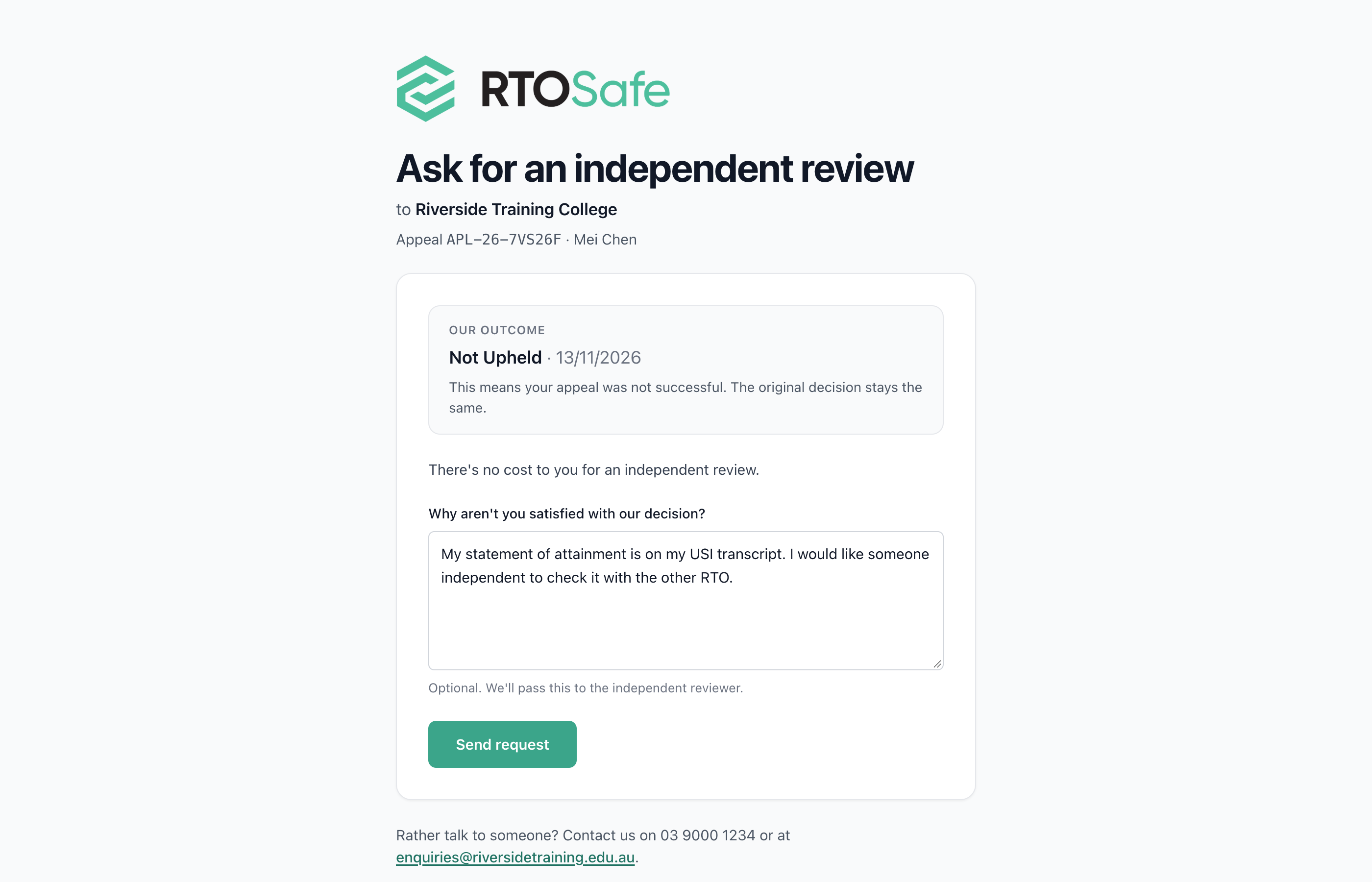
The outcome email lets the appellant ask for an independent review online. When they do, the appeal reopens as `Independent Review` and RTOSafe lets you know. Your final decision is due within the independent review timeframe set in [your appeals settings](/help/appeals-setup), and the appellant is told the date.

<figure><img src="/help/assets/appeals-independent-review-2.png" alt="The public Ask for an independent review page for a credit transfer appeal, showing the original outcome and the Send request button"><figcaption></figcaption></figure>

If they ask by phone, email or letter instead, open the appeal and select **Refer to Reviewer**.

***

## Steps

<div class="help-stepper">

<div class="help-step">
<div class="help-step-number">1</div>
<div class="help-step-content">

**Send the appeal to the reviewer**

Send the appeal and its documents to the independent reviewer yourself. RTOSafe doesn't contact them.

</div>
</div>

<div class="help-step">
<div class="help-step-number">2</div>
<div class="help-step-content">

**Mark it as referred**

Select **Refer to Reviewer** and choose the reviewer. The appellant is told who is reviewing their appeal.

</div>
</div>

<div class="help-step">
<div class="help-step-number">3</div>
<div class="help-step-content">

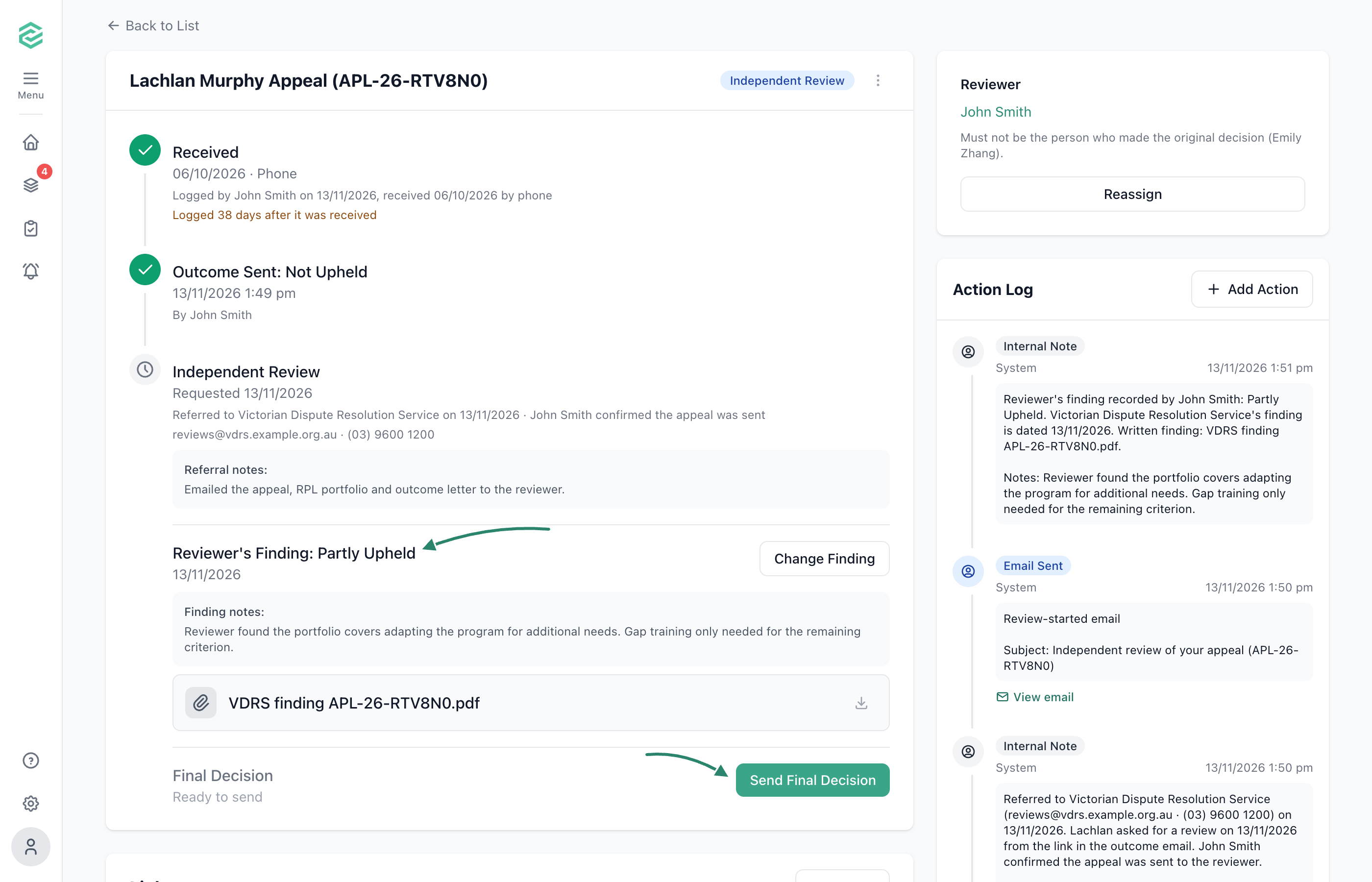
**Record the reviewer's finding**

When the independent reviewer reports back, select **Record Finding** and upload it.

</div>
</div>

<div class="help-step">
<div class="help-step-number">4</div>
<div class="help-step-content">

**Send your final decision**

Select **Send Final Decision** before it's due and explain your decision. Follow what your appeals policy says about the independent reviewer's finding.
</div>
</div>

</div>

<figure><img src="/help/assets/appeals-independent-review-1.png" alt="An appeal for Lachlan Murphy in Independent Review, with arrows pointing to the independent reviewer's recorded finding and the Send Final Decision button"><figcaption></figcaption></figure>

***

## What Happens Next

The appeal closes again, and the appellant is emailed your final decision. The whole review stays on the appeal and in its PDF export.

***

## Common Issues

<details>
<summary><strong>What if the appellant changes their mind?</strong></summary>

Before referral, select **Withdraw Request** on the appeal. After referral, record the finding and final decision as `Withdrawn`. Either way, your original outcome stands.

</details>