# Set Up Access Profiles
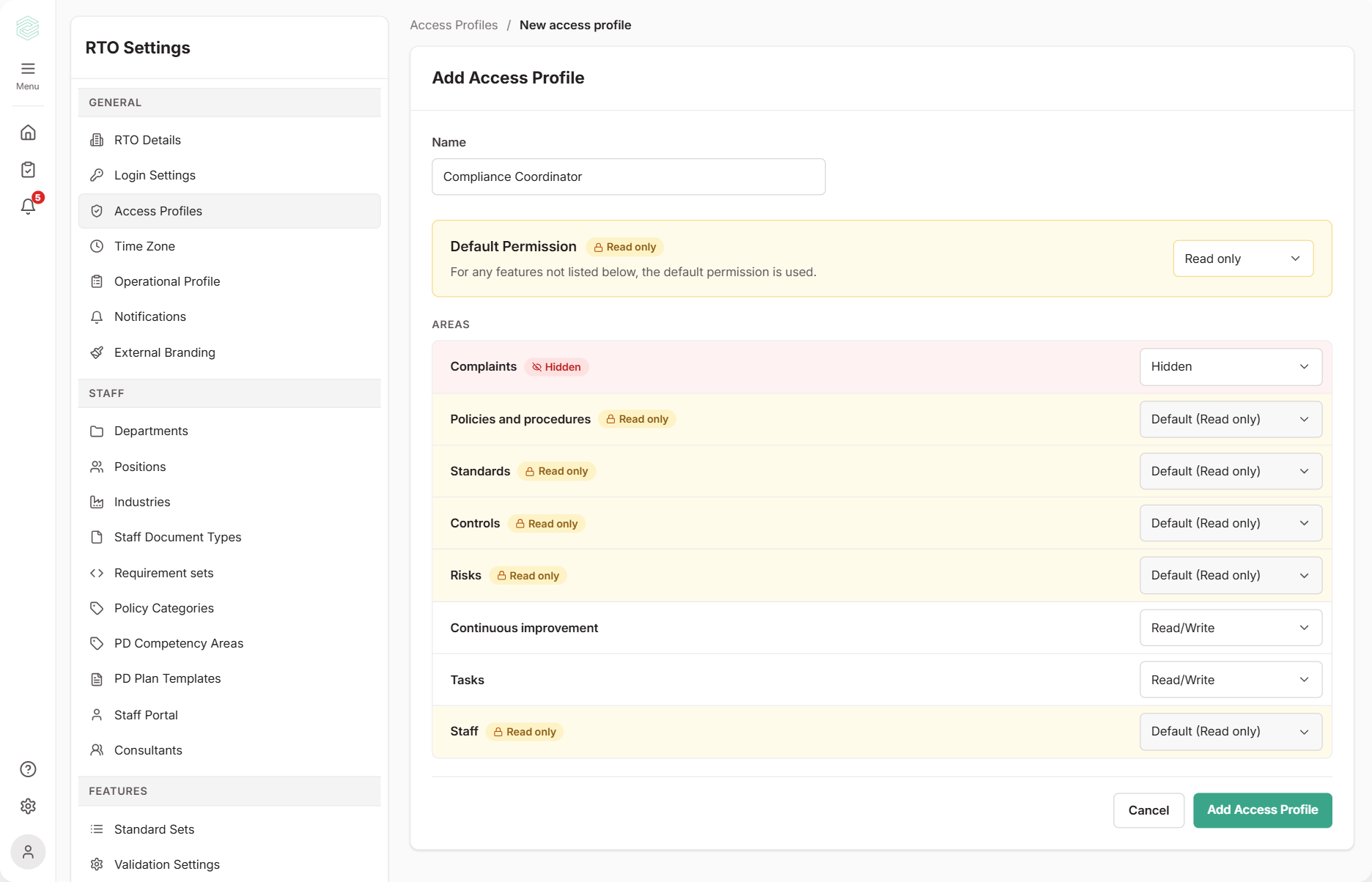
An access profile limits what someone can **change** in the RTOSafe admin portal. For example, you could let a new team member update tasks and continuous improvements while keeping your policies and standards read only.
Anyone without a profile has **full access**, so nothing changes until you create a profile and assign it to someone.
**Access profiles only apply to the admin portal.** They don't affect what staff see or do in the Staff Portal. To control that, see [**Staff Portal Settings**](https://app.rtosafe.com.au/StaffPortalSettings) and the [Staff Portal Overview](/help/staff-portal-overview).
***
## How It Works
Each profile has two parts:
* **Default Permission:** applies to everything in the admin portal that isn't listed as an area (scope, validations, professional development and so on).
* **Areas:** Complaints, Policies and procedures, Standards, Controls, Risks, Continuous improvement, Tasks and Staff. Each area follows the default unless you give it its own setting.
The **Staff** area covers the staff file: staff records, staff documents, employment history, competency determinations and trainer scope. It also covers the staff settings for positions, staff document types and requirement sets. Professional development follows the default, even though you open it from a staff record.
Profiles work the same way for your own staff and for outside consultants. You assign a staff member's profile on their staff record. For a consultant, you assign it on the [**Consultants**](https://app.rtosafe.com.au/Consultants) page. Don't create a staff record for them (see [Invite a Consultant](/help/consultant-access)).
There are three levels:
* `Read/Write`: they can view, add, edit and delete records.
* `Read only`: they can still see everything, but the buttons to add, edit or delete are hidden.
* `Hidden`: the area disappears for them completely. This is only available for **Complaints** (see [Hiding Complaints](#hiding-complaints) below).
Most organisations start with a default of `Read only` and switch on `Read/Write` for just the areas that person works in.
***
## Steps
1
Go to [**Access Profiles**](https://app.rtosafe.com.au/AccessProfiles) under **RTO Settings** and select **Add Access Profile**.
2
Give it a name that describes the role, like `Compliance Coordinator` or `Consultant (read only)`.
3
Choose the **Default Permission**.
4
Change any areas that should be different from the default, then select **Add Access Profile**.
Next, [assign the profile](/help/access-profiles-assign) to the right people.
***
## Areas Are Connected
Records in RTOSafe often link across areas. When someone links or creates a record that touches two areas, they need `Read/Write` in **both**. If they're missing one, the button simply won't appear. For example:
| To do this | They need `Read/Write` in |
| --- | --- |
| Raise a continuous improvement from a complaint | **Complaints** and **Continuous improvement** |
| Add a task to a continuous improvement | **Continuous improvement** and **Tasks** |
| Add a control to a risk | **Risks** and **Controls** |
Tasks RTOSafe creates for itself, like review reminders, follow the record they belong to. They don't need **Tasks** access.
If an AI assistant is missing, check the person's access profile. They need `Read/Write` in all of these areas:
| Assistant | Required areas |
| --- | --- |
| [Risk assistant](/help/risk-register-assistant) | Risks, Controls, Continuous improvement, Policies and procedures |
| Clause assistant | Standards, Tasks, Continuous improvement, Controls, Policies and procedures |
The permission can come from the default or the area's own setting.
**Test a new profile before you rely on it.** Because areas connect, a profile can block something you didn't expect. Assign it to a colleague and ask them to run through their usual work, then adjust the profile as needed.
***
## Hiding Complaints
Due to the sensitive nature of complaints, setting **Complaints** to `Hidden` allows you to remove complaints completely for anyone with that profile. They won't see:
* the Complaints pages, menu item or settings
* the link back to a complaint on tasks, continuous improvements and incidents raised from it
* complaint files, alerts, calendar entries or search results
* complaints on the dashboard, in weekly digest emails or in the CEO report
* the new complaint email
When hidden, the staff member can't be assigned to a complaint.
**Anything typed into a linked record is still visible.** If a task raised from a complaint names the complainant in its title, people with Complaints hidden will still see that title. Keep linked records neutral.
Complaints is the only area you can hide at the moment. If you'd like to hide another area, let us know by [submitting a feature request](/help/get-started/feedback).
***
## What Happens Next
* Changes apply to everyone with the profile as soon as you save. If you change what they can do, RTOSafe lists the people affected and asks you to confirm. Changing only the profile name doesn't need confirmation.
* The **Access Profiles** page shows how many people have each profile. Hover over the number to see who.
* When you give someone a profile or change theirs, it's recorded on the **History** tab of their staff record.
***
## Common Issues
I can't see Access Profiles in RTO Settings
Access Profiles aren't available on the **Starter** plan. They're available on Team and Organisation.
They also need the Staff Portal to be on for your organisation. [Contact support](mailto:support@rtosafe.com.au) if you need them.
Only Compliance Admins on your own staff can manage profiles. Consultants can't.
I can't edit or add a profile
You need `Read/Write` in every area to manage access. Someone with full access will need to make the change.
I can't archive a profile
A profile can't be archived while anyone has it, including inactive staff. Give them a different profile first.