# Assign an Access Profile
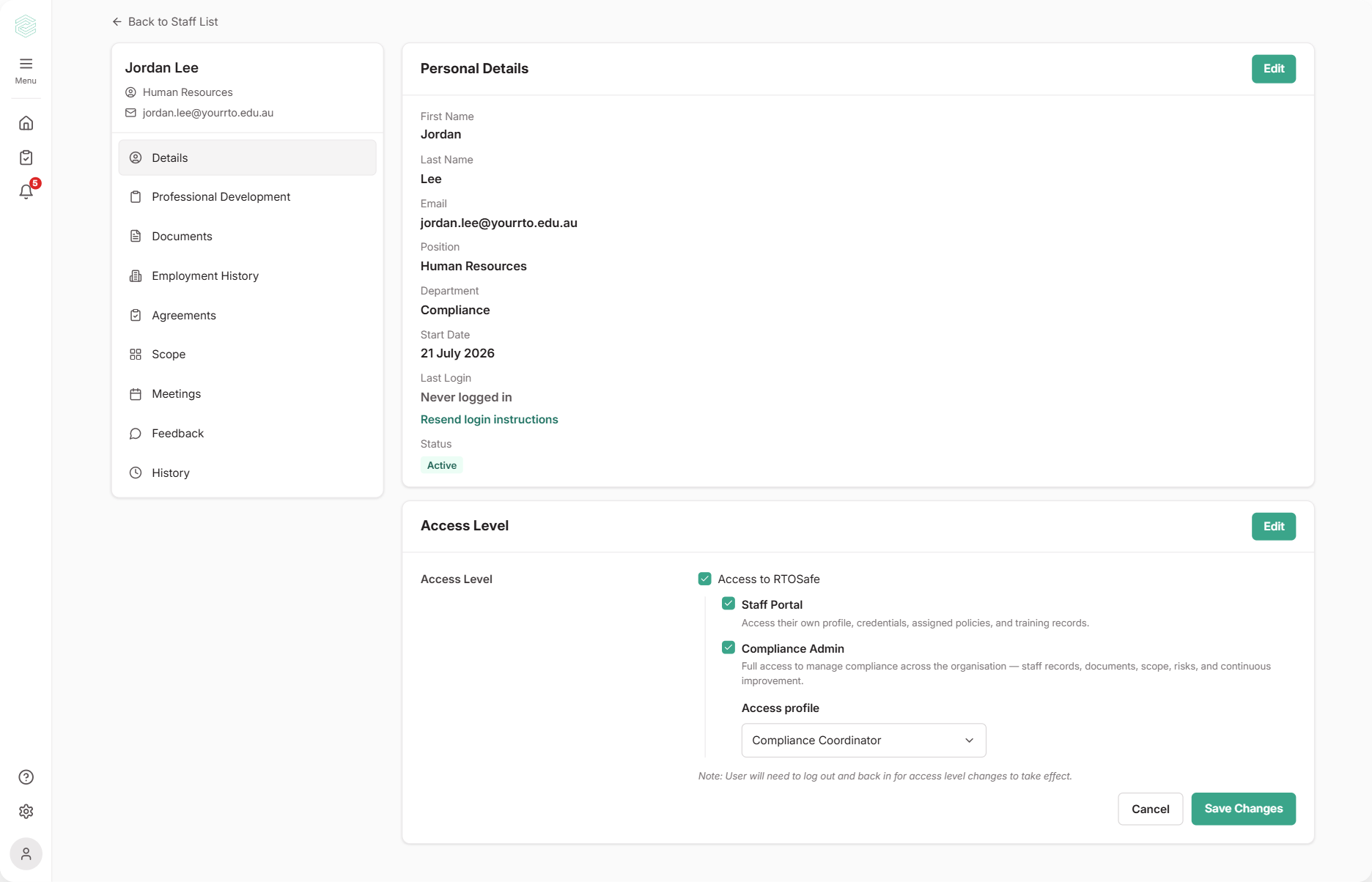
Once you've [set up an access profile](/help/access-profiles), you choose who it applies to. Profiles only apply to people with admin access (Compliance Admins and consultants). They don't change anything in the Staff Portal.
***
## Before You Start
* You need to be a Compliance Admin with full access to assign profiles.
* You can't change your own access profile. Another admin needs to do it.
***
## Steps
1
Open the staff member's record from [**Staff**](https://app.rtosafe.com.au/Staff).
2
In the **Access Level** section, select **Edit**.
3
Make sure **Compliance Admin** is ticked, then choose a profile from the **Access profile** list. Choose **Full access** to remove a profile.
4
Select **Save Changes**.
New admins always start with **Full access**. Add a profile straight after creating them if they need limits.
### For consultants
Consultants don't need a staff record, so don't add them as a staff member to give them a profile. Instead, choose the profile in the **Access profile** list when you [invite a consultant](/help/consultant-access). To change it later, go to [**Consultants**](https://app.rtosafe.com.au/Consultants) under **RTO Settings** and choose **Change access profile** from their row.
***
## What Happens Next
* The new profile applies the next time they move to another page. They don't need to log out. (The note about logging out on the **Access Level** screen is for ticking or unticking **Staff Portal** or **Compliance Admin**.)
* Their staff record shows the profile name under **Access Level**, and the change is recorded on their **History** tab.
* You can filter the **Staff** list by access profile to check who has what.
* We recommend asking them to try their usual tasks. Areas are connected, so they may need `Read/Write` in more than one area to do some things.
***
## Common Issues
There's no Access profile list
Tick **Compliance Admin** first. If it shows "Full access" with a link instead, you haven't [created a profile](/help/access-profiles) yet.
Access Profiles aren't available on the **Starter** plan. They're available on Team and Organisation. They also need the Staff Portal to be on for your organisation. See [Set Up Access Profiles](/help/access-profiles), or [contact support](mailto:support@rtosafe.com.au) if you need them.
The Edit button is missing
Only admins with `Read/Write` in every area can change someone's access. `Read only` or `Hidden` on just one area, such as **Staff** or **Complaints**, is enough to hide it.
They can't do something in the Staff Portal
Access profiles don't affect the Staff Portal. Check [**Staff Portal Settings**](https://app.rtosafe.com.au/StaffPortalSettings) instead.